38 professional email signature examples & Free generator (Apply in 5 min)
- See email signature examples & learn best practices for how to make a professional email signature in 5 minutes.
- Get actionable tips for making your business email signature with a company logo, image, links, social icons, and more.
Generate and set up an email signature with our generator:
What is an email signature?
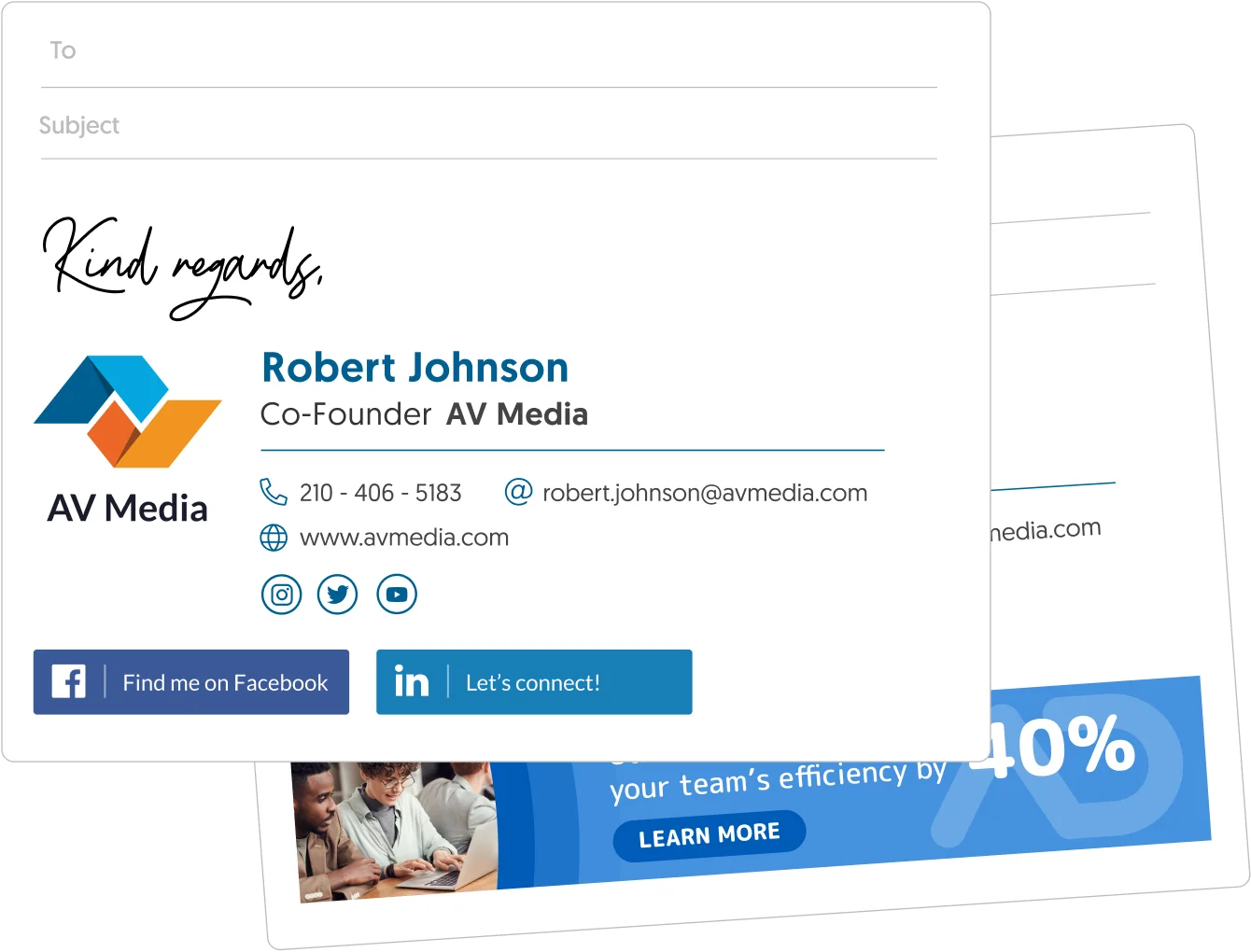
An email signature is a block of text appended to the end of an email message. A professional email signature includes essential information about you and your business. It will include your name, job title, company, phone number, address, and website link. A truly professional signature will include your image and company logo, social media icons, and a call to action, but it can actually do much more.
Find the best email signature examples by profession or feature
Take a look at the content in the left side menu or the slider below to find quick access to professional and feature-focused email signature examples and tips, arranged by professionals with 20+ years of email signature management experience.
WiseStamp has been around since 2009. That’s a lot of time to expand and perfect our selection of email signatures. So, if you have a specific need in mind (feature, design, style, etc.), you’ll find plenty of specific examples and guidelines for email signatures in this guide.
Short answer
How to add a signature to your email in 2 minutes?
To give yourself or your brand a professional email signature you don’t really need to know how to make an one, with all the design and coding practices that go into it. These days all you need is a good generator. Explore these pre-designed email signature examples and apply one as your own in minutes with WiseStamp email signature template generator
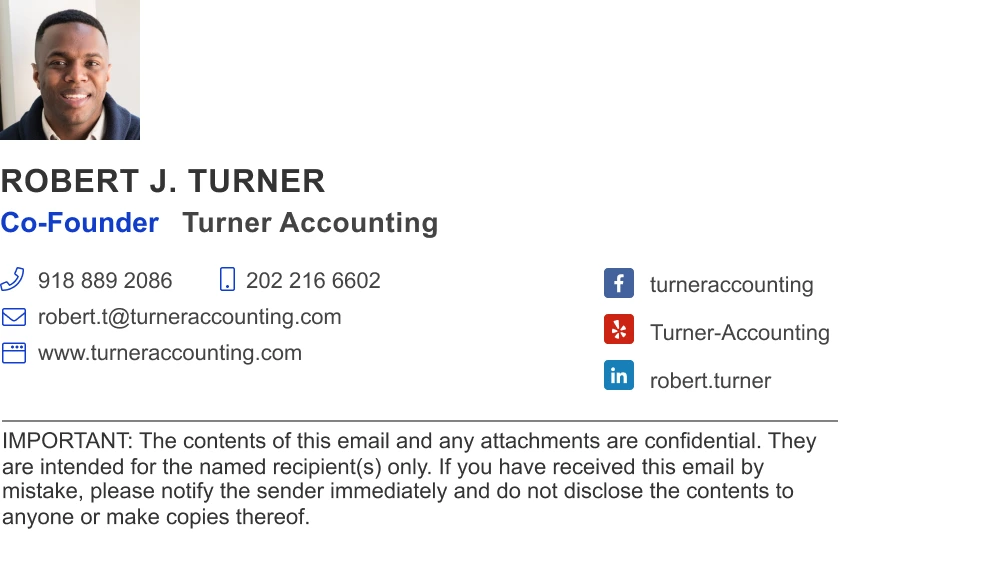
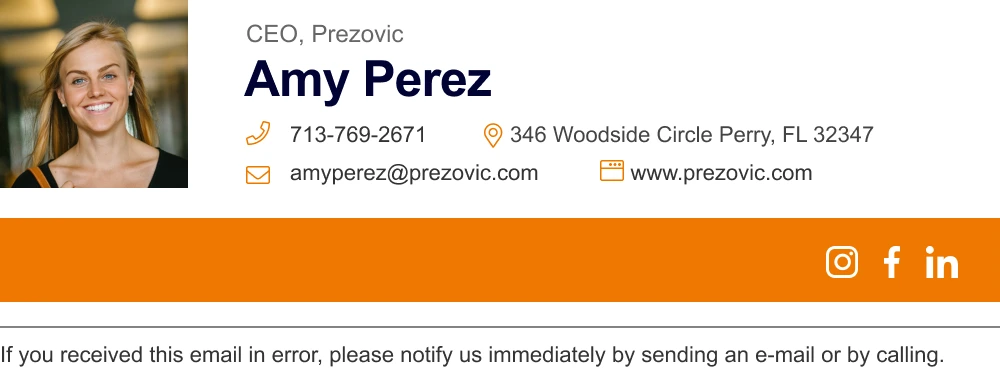
Top email signature examples to apply as your own
To
Subject

To
Subject
To
Subject

To
Subject

To
Subject

To
Subject
To
Subject

To
Subject
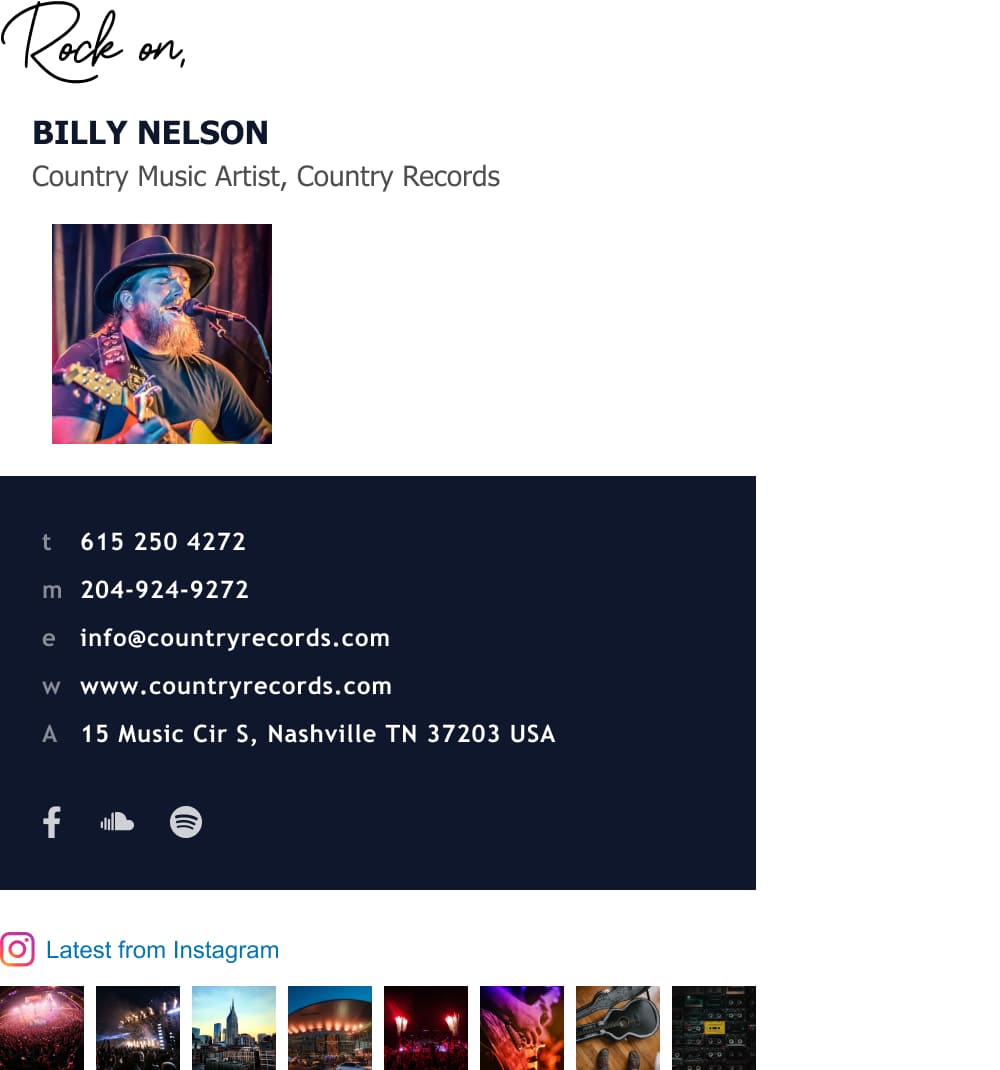
To
Subject

How to create a professional email signature (guidelines, tips & examples)
Let’s see examples of how a truly professional email signature is made:
Your email signature is a great opportunity to present yourself and what you do in a beautiful and professional way. If you do it right you’ll build trust and connect with your clients more significantly with each mail you send.
This extensive guide is intended to show you exactly how it’s done, so stay tuned. We’ll go over how to make the best use of each moving part in your signature block. We will not cover email signature design best practices, and if that’s your focus, click the link for our comprehensive email signature design guide about that.
3 things that make a professional email signature:
- It creates trust
- It is visually pleasing, and
- It provided unique value
All good email signatures do these 3 things. You had better do the same if you care to make a professional impression, gain your readers’ attention, and earn their trust.
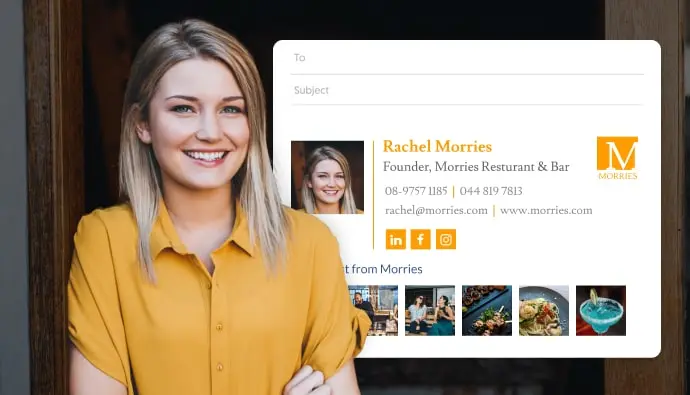
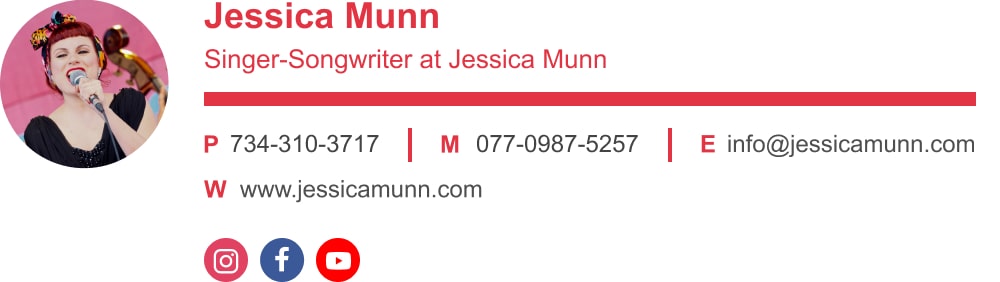
An example of a well balanced email signature
Before we go ahead and create the perfect signature for your email, you might want to check out our extensive How-to guides since each platform has its own set of rules and functions. Pick the platform that you or your organization work with and let’s begin!
Note:
A personal email signature is used in a slightly different way than a business email signature for professionals. If you intend to use your signature for your private email, I advise that you read our page tailored for making a personal email signature.
Short answer
What to include in your professional email signature?
There are 5 must-have elements that make up any good email footer template. These elements complement each other to create an effective professional format. In order to create an impact for you and your organization, you want to do it correctly and get the small details right.
By the end of this section, you’ll learn how to create a good-looking formal email signature that will make a good impact on your peers and leave a lasting impression.
7 components of a good email signature:
- Personal and business details
- Contact information
- Personal photo/company logo
- Call-to-Action (CTA)
- Social media icons
- Animations (optional)
- Add-ons for specific professions (optional)
Let’s look into each element separately, to see how it’s used best.
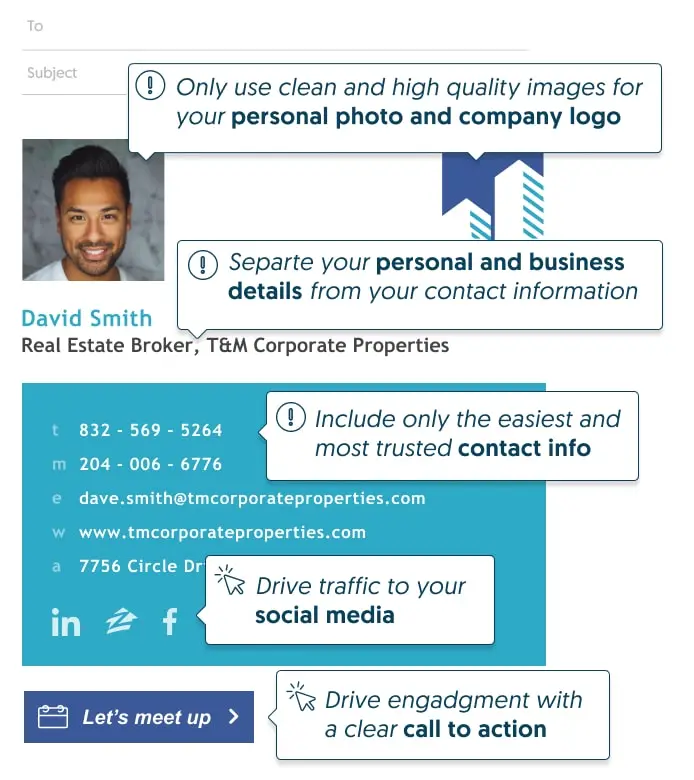
Email signature components example
1. How to present your personal and business details
It may feel right to cover everything you do in your work email signature, especially when you start using advanced features and add-ons like buttons and banners. But in order to be effective, it’s a good idea to be concise. Because of the very limited email signature format, if it’s not strictly essential, it’s noise.
Best email signature format:
When confronted with limited space, structure, and format are everything. Your signature format will make or break the impression you leave on your readers. That’s why using a clean and organized email signature format is a basic requirement for any professional signature.
So, what should you do?
Use short but clear wording. You don’t need to say Chief Executive Officer – just write CEO, and definitely don’t use Wizard of Light Bulb Moments for Marketing Director (true story).
Avoid vague or misleading titles. So, it’s a no-go on Communications Ambassador or Under Secretary to the Sub-Committee.
Include all building blocks of a basic email signature format:
- Your full name
- Business name
- Job title
- Contact phone
- Official website
- Address – in case of local store/service
See these great signature examples below:
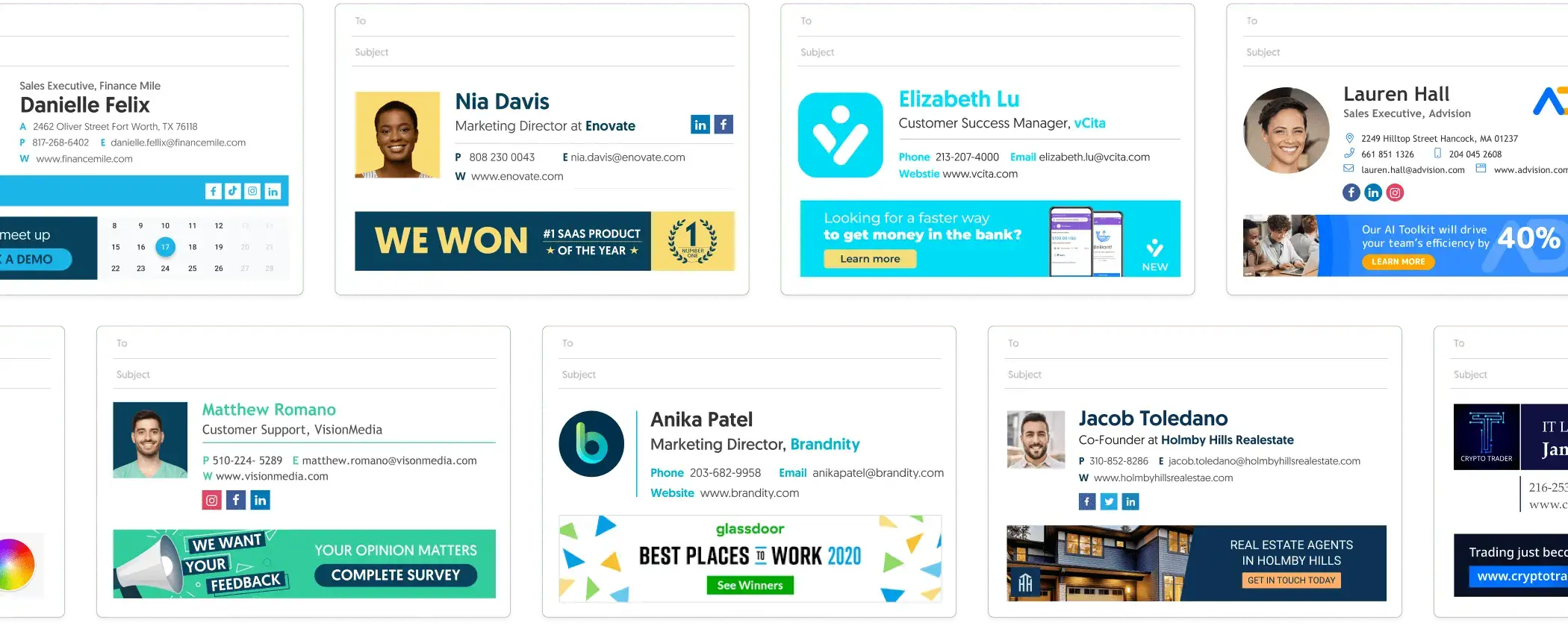
Examples of How to present your personal and business details on email signatures
2. How to present your contact information in your Email signature
The point of adding your contact details is, unsurprisingly, to help people contact you. The more options you add, the less clear it becomes what the best way is to get in contact with you. This makes it less likely that anyone will follow through.
So, what to do?
- Leave out unnecessary information. There is no need to add your email address to your email signature (the reply button will do) and there is no need to give 3 phone numbers if they all lead to you.
- Only add links to content people will want to see. Put a hyperlink to your website, portfolio, or social media only if it’s something your prospect would consider valuable (ask a friend for her opinion, if you don’t trust yourself to be unbiased, yeah?)
- Don’t add details you do not want people to use. If you don’t intend to answer people who call you on your mobile phone, don’t add a mobile number. Promising and not delivering is worse than no promise at all.
- Don’t add contact details that you’re not in control of (like a third-party calling service). What other people choose to do there, may unknowingly hurt your reputation.
See how it’s done in the example below:
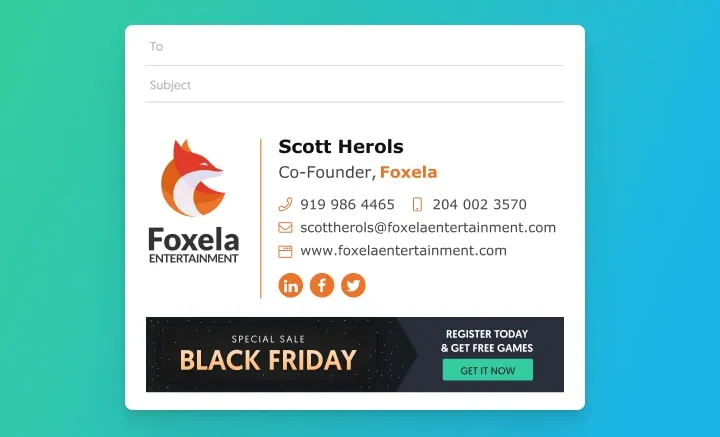
Great contact arrangment for email signatures
3. Make a professional email signature with a personal image and logo
Your email signature block may be the last thing people see in your mail but that also means that’s the impression they will take with them.
Your image and logo are the most memorable elements in your email signature. Yet there are more bad examples out there than good ones for how images are used. Why are so many people content with having such bad design as their lasting impression? Well… because adding a nice, responsive, well-designed signature to your mail is not so simple.
You may think that making an email signature with a logo is just drag-and-drop, but if you’ve ever tried to do it yourself you know that this is not the case. Even if you use an email signature editor, that really doesn’t solve the problem. You still have to install the code manually into the email client’s HTML file.
It doesn’t really matter which email provider you’re using, the WiseStamp generator can auto-install your email signature in your email (with just one click). You can check out how it works specifically for Gmail, Outlook, Apple Mail, iPhone, or Yahoo.
But even using a generator, there is still room for things to go wrong. There are ways to ensure your image will look great no matter what.
How to make your signature image and corporate logo really attractive
Your image and logo are literally your face, or your company’s face, when it comes to email communication – so make them attractive. Attractiveness creates trust, makes you more memorable, and increases compliance. Doing this wrong can also hurt your reputation and your brand.
I) It’s always better to smile
Smiling faces have been shown to increase engagement and positively influence people’s willingness to do business with you. But, this is a fine art. Make your smile natural and friendly and confident, not smug, not condescending, not shy, and definitely not fake.

II) Use only high quality images
A low-quality image is by now standard for dodgy and spammy content on the web. Any low-quality images you use may associate you with this type of distrusted content. So use only high-quality pictures.

III) Make sure your image isn’t trimmed
Our email signature generator (and most others) use a square or a circle frame to present your image. So, your safe bet would be to use 1×1 (square) picture proportions (around 250x250px is good). Otherwise, pieces you like about yourself may be left out 🙂

IV) Give your image a clean background
You don’t want to drown your nice smile against a noisy background (like in the right pic). Instead give yourself a clean and contrasting background that makes your face bright and clear.

Tip: Use both photo and business logo with an animated GIF
A GIF email signature can be the most efficient use of your limited signature space. Using a GIF like the one below will permit you to showcase both you and your company in a way that is aesthetically pleasing and not too overwhelming.
It will also make your email signature eye-catching and increase exposure.
There are loads of other animation options that we talk about in the bonus section below.
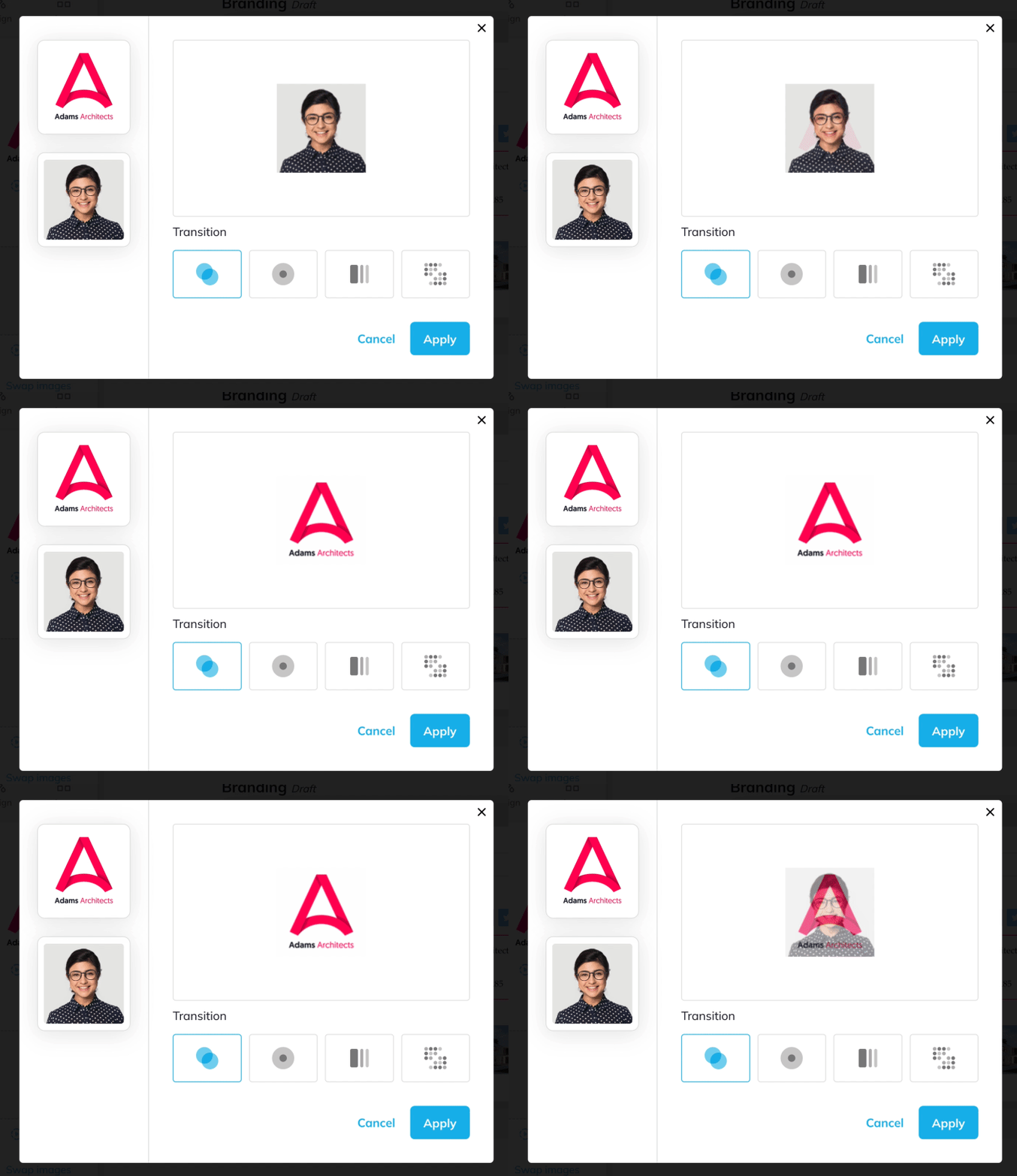
Example of an animated logo
4. Use a Call to action (CTA) to turn your email signature into a marketing channel
A recent survey we sent to our users showed that 67% of WiseStamp personal email signatures and 77% of company email signatures are used for email signature marketing (ESM) purposes. This is most often carried out by adding some form of CTA to the email signature.
What is a call to action? Well, it’s more or less what it sounds like – it’s an invitation for your prospects to take you up on an offer. In practice, you’ll need to add a CTA to your email signature.
How to turn your email signature into a marketing channel:
- add a button
- add a banner
- add text or image links
- add social icons
- add a video
An effective CTA should be polite yet assertive, and above all, easy to understand and easy to follow through. So, how do you do that?

Email signature example with CTA
How to successfully use an email signature call-to-action
In a nutshell? Think of a typical person your message is meant for, then think about what you can provide that they really need. Offer them that in words they understand and relate to, and present it in a way that visually sticks out (easier said than done?
We have an entire post about CTA email signatures, but in order to keep us on course let’s break it down here.
I) Decide on just 1 action – that will give you (and your users) the most benefit
The main challenge here is giving up on secondary options you’d want people to get onboard with. But you can’t have your cake and eat it too (turns out your mom knew a thing or two about email signature marketing ha…?) – sometimes “less is more”.
So, decide on 1 CTA:
- Add banners with one clear message
- encourage your readers to call you with a clickable phone number
- Add a “Sale” offer with a clickable link
- Add a brick and mortar address with a Google maps link
- Invite your readers to meet by using a scheduler addon
- Pull people to engage with you on social media with social buttons or a Youtube thumbnail
II) Make it easy to take action
Now that you have just 1 request from your audience make sure that you’re not asking for too much.
Asking someone to marry you is just 1 request right? But it’s certainly not a small or easy decision to make. Be modest with what you ask. Use low commitment words like “see” or “let’s talk” instead of “buy” or “enroll”.
All you need to do is convince people to take the first step, not go the whole way. Once they take that step they have slightly committed and you can try to convince them to go further.
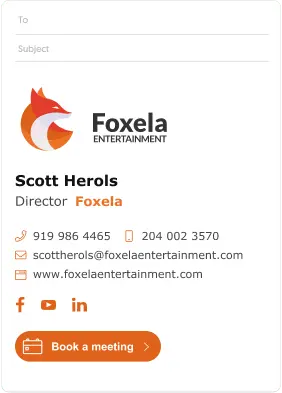
III) Be as clear and descriptive as you can (in 2-5 words)
Let’s say you’re a Marketing Director and you want to send people to your sales landing page. A button text saying “Visit my sales page” is clear on what you want people to do, but it doesn’t really describe what you offer your prospects in terms of benefit. Instead try something like “Stay 2 nights get the third for FREE”.
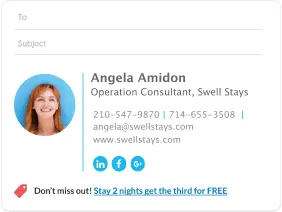
IV) Make your call-to-action visually stand-out
This one is kind of straightforward, no? If you don’t see the CTA you’re not going to click it. Simple.
Give your button and/or banner some “pop” with a solid splash of color, just make sure that the button is a different color than its background and that the text is easy to read.
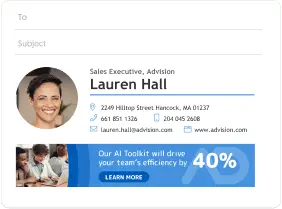
V) Verify that all links work and lead to the right place
Imagine you go through all the trouble of making a nice signature (it’s actually really easy with our generator) and even make a great call to action, only to lead people to broken or missing links. Not ideal, right?
So after you’ve completed your signature, go over all the buttons, social icons, and other details and see that everything is correct and working properly.
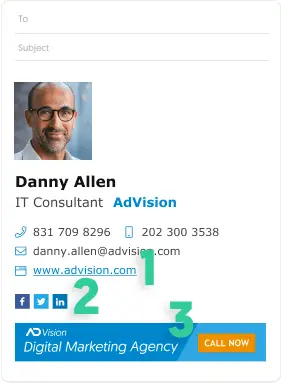
5. Add social media icons to expose more people to more of what you do
Throughout this extensive guide, I’ve been telling you to keep what you offer on your email signature to a minimum. Well… when it comes to social media buttons you can let loose. The small and compact nature of social icons means that you can go all in and use them all responsibly. The right social media icons will refresh your signature and make it look better and more complete.
You have lots of cool ways to present your social media assets beyond icons. Full-fledged buttons, videos, and more are also available. Check out our page on social media icons and buttons for email signatures that drive clicks, you’ll find some cool examples there.
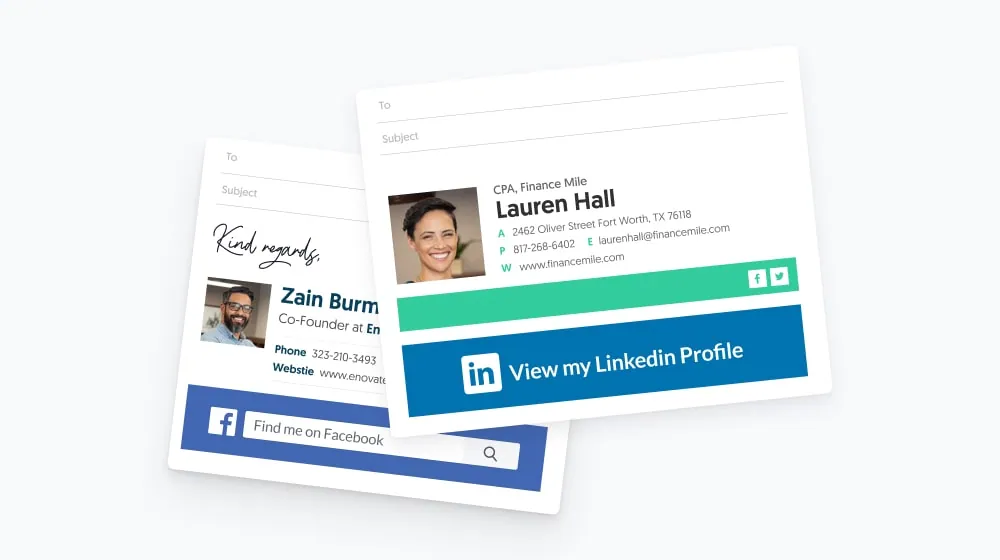
A great example for social media marketing with email signatures
6. Easily animate your email signature
It’s a good option to use elegant animations in your email signature. Animation is a great eye-catcher, and you should use it to bring attention to your otherwise unnoticed email footer.
Best email signature animations for you sig:
- Picture/logo GIFs
- Animated handwritten sign-off
- Animated banners
- Animated buttons
You should try our animated signature GIF maker see some examples of how it’s done, and make your own animated signature.

Animated email signature example
Animated signature example: Do’s and Don’ts
The important thing in animation is not to go overboard. Getting too freaky can be counterproductive. Don’t overdo it – too much movement can be distracting. If there’s too much movement in your signature it can get very hard to focus on actually reading. The motion will compete against the information to which you wanted to pull people’s attention in the first place. And it can be seriously annoying.
Make sure your animation adds value
Let’s go over what that means. Making use of your limited signature real estate, grabbing attention, or just being a cool feature is good and well but look to create an impact with your animation. To really add value your animated email signature must compliment you or your brand in a meaningful way.
For example, you can use an image strip add-on to add GIFs that show you or your product in action, or you could add a special handwritten animated sign-off to give a personal feel to your signature. Another thing that does the trick is adding your business slogan in addition to your photo and logo like a dynamic typing effect.

handwritten animated sign-off signature example
7. Gear up with add-ons for specific industries and professions
We’ve been working with lots of people from a great many professions through the years and we got enough requests to build dedicated add-ons to answer specific industry needs:
- Stay on the safe side with legal disclaimers
- with an image gallery
- Tell a deeper story with a video
- Express your values with a green email footer or beautiful quotes
If you’re a lawyer, an artist, a travel agent, an eco-activist, or even an astronaut, you’ll likely find what you need here or in our full list of featured add-ons.
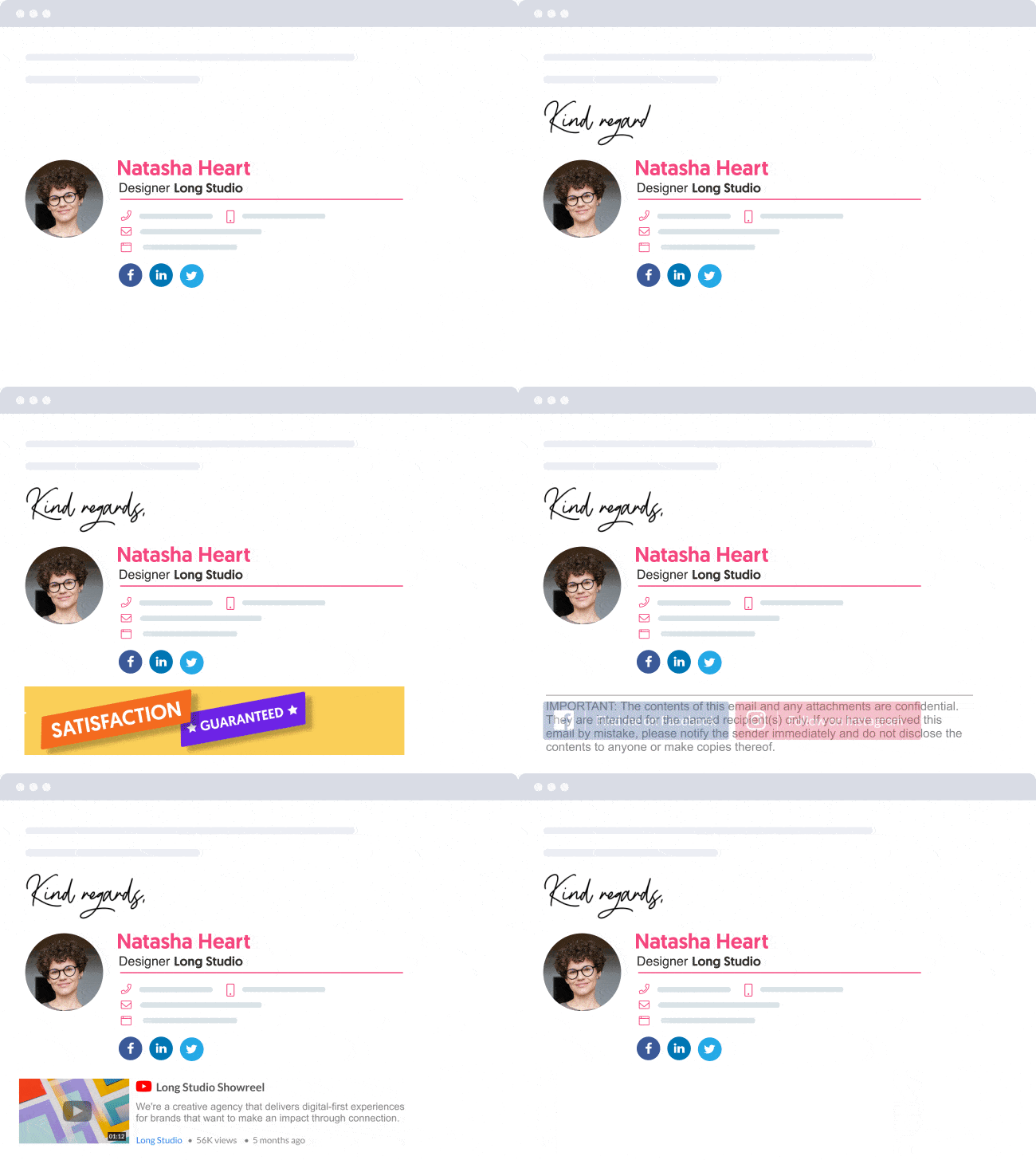
I) Apply legal and GDPR disclaimers
It’s really easy to set up. Once you’ve finished putting in your details in our signature generator, just go over to the add-ons section > choose the one with the hammer called “Disclaimer” > Then choose one of our pre-made disclaimers or customize one on your own > click “add” and you’re done.
Visit our guide on email disclaimers to learn more about important details that go into making them and how to use them correctly.
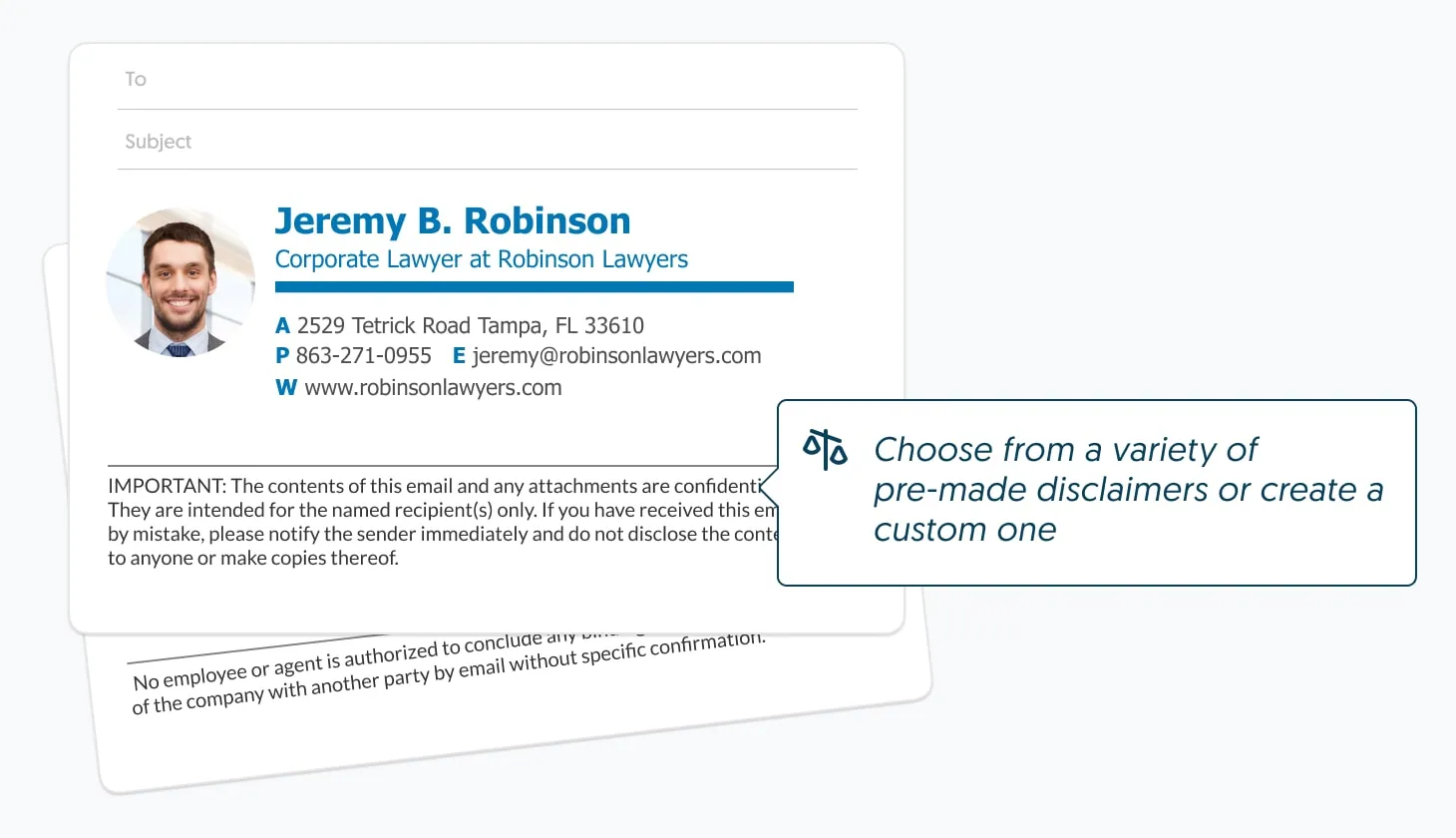
Email signature example with disclaimer
II) Add an Image/GIF gallery to show off your social media, product, or service
Pictures speak louder than words (is that the saying?) so let them drive your message home. If you have a cool, creative, and good-looking product – make a show of it and pull people in with strong visuals. Images and videos are known to have high click rates.
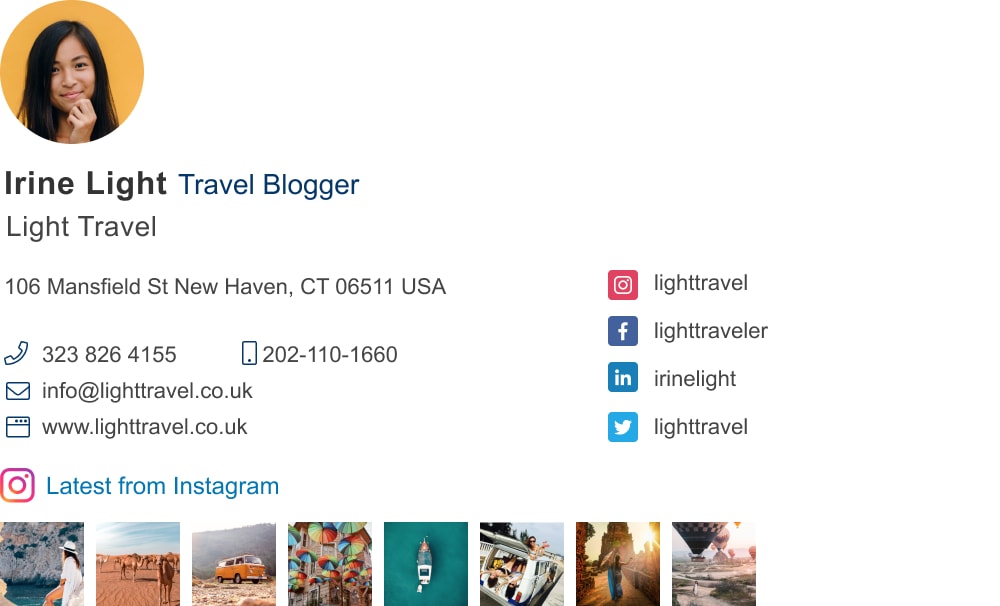
BTW, there’s a WiseStamp Instagram gallery add-on that makes adding Instagram images and links to your email signature no hassle at all.
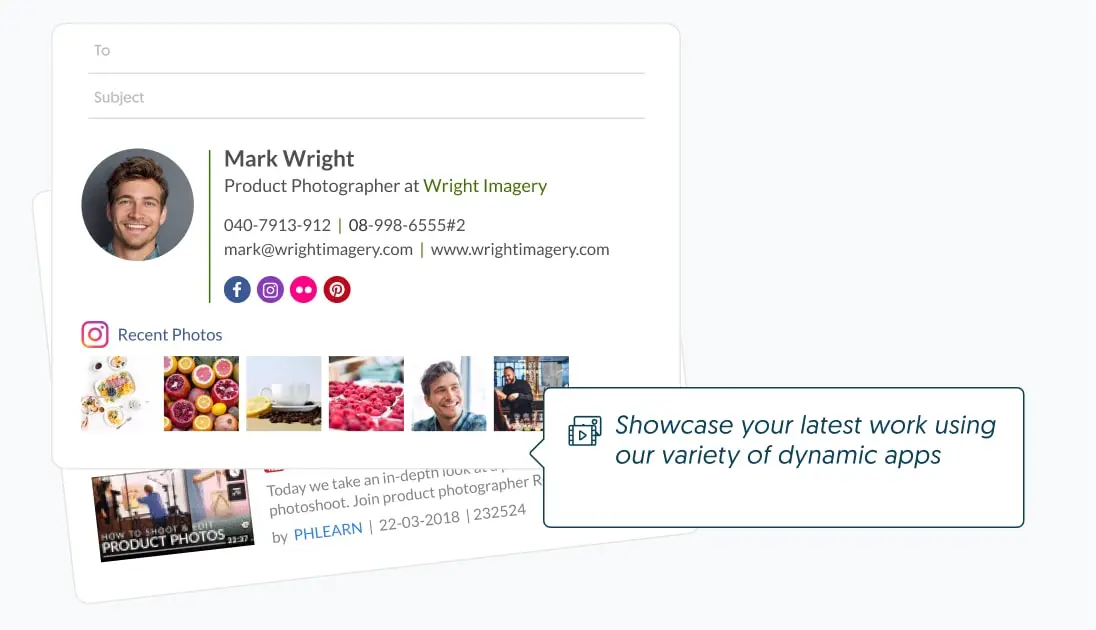
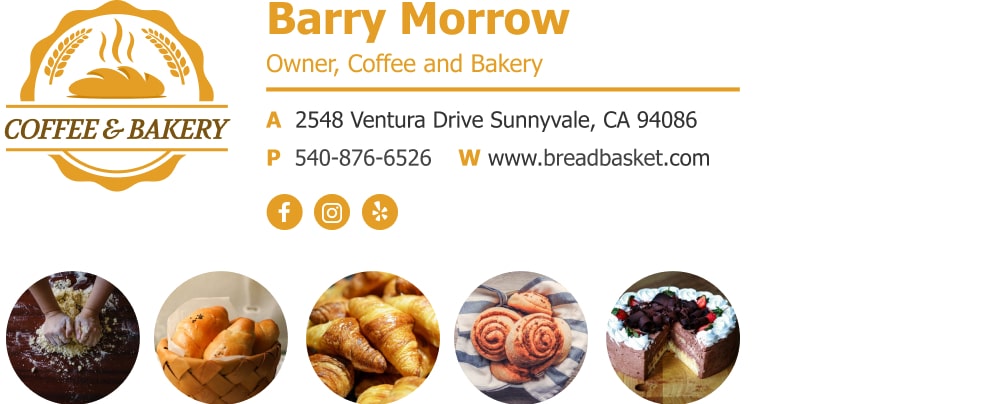
Email signature example with gif
III) Add a video to load your signature with more content than the plain text allows
Getting people interested enough to click on your video is a powerful thing. It gives you the opportunity to tell the full story about what you do or what you offer. There is no other way to tell a story right out of your email signature. So, make the best of your signature real estate and add your latest sales video to your signature block. You can set up a thumbnail that’s auto-generated directly from YouTube with our video signature add-on.
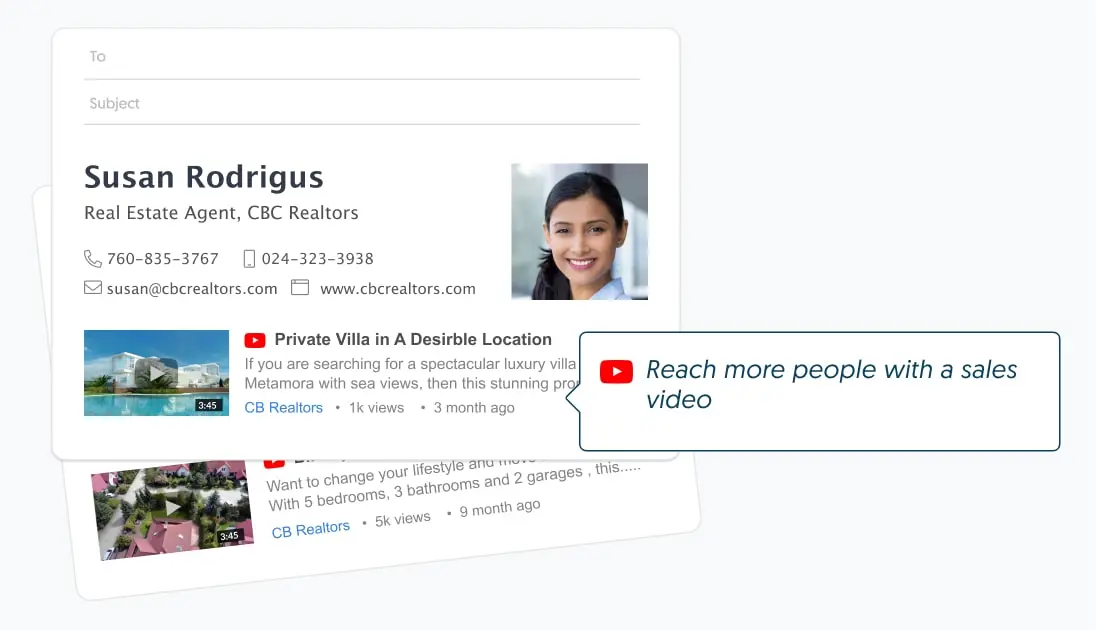
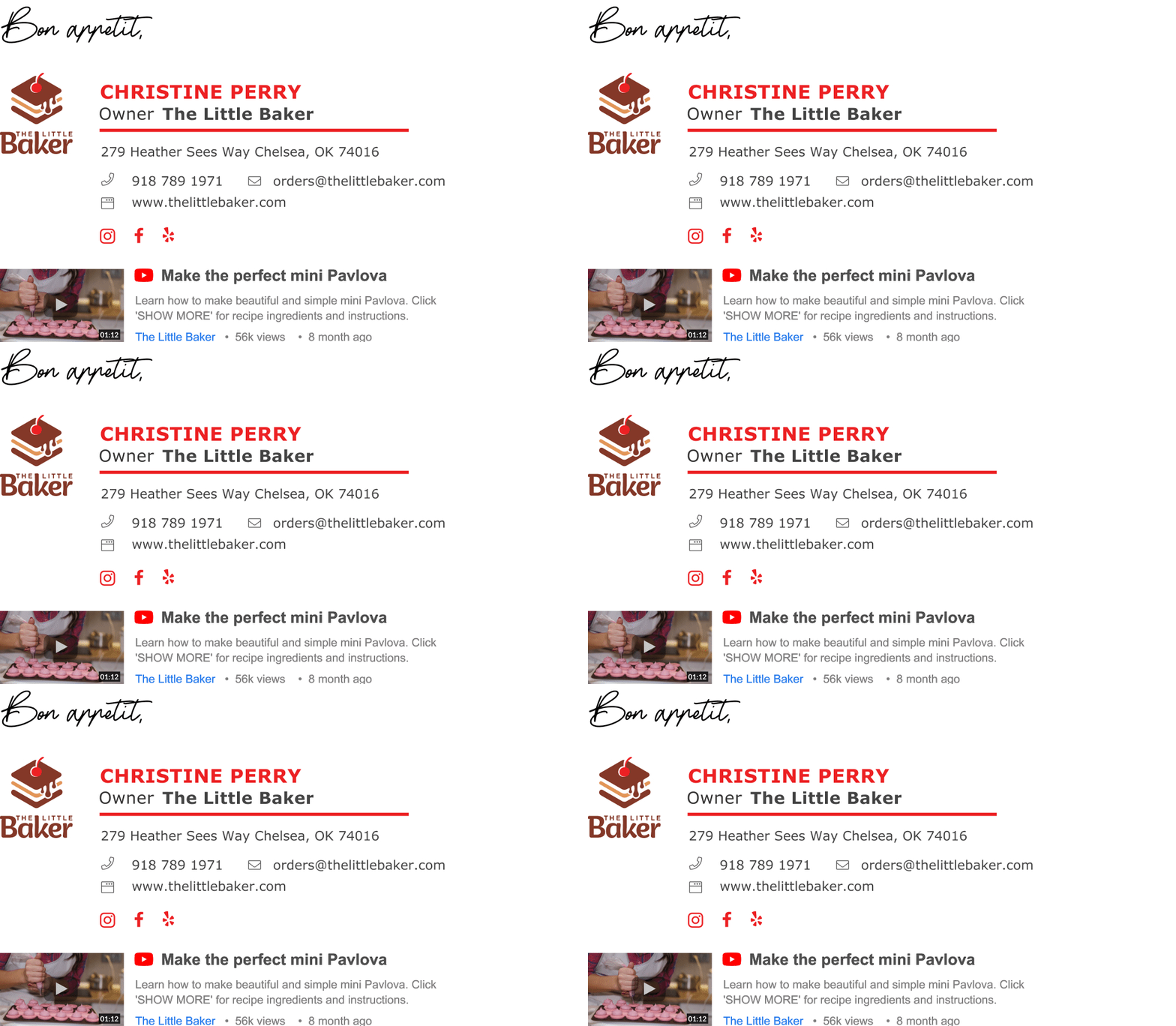
Email signature example with video
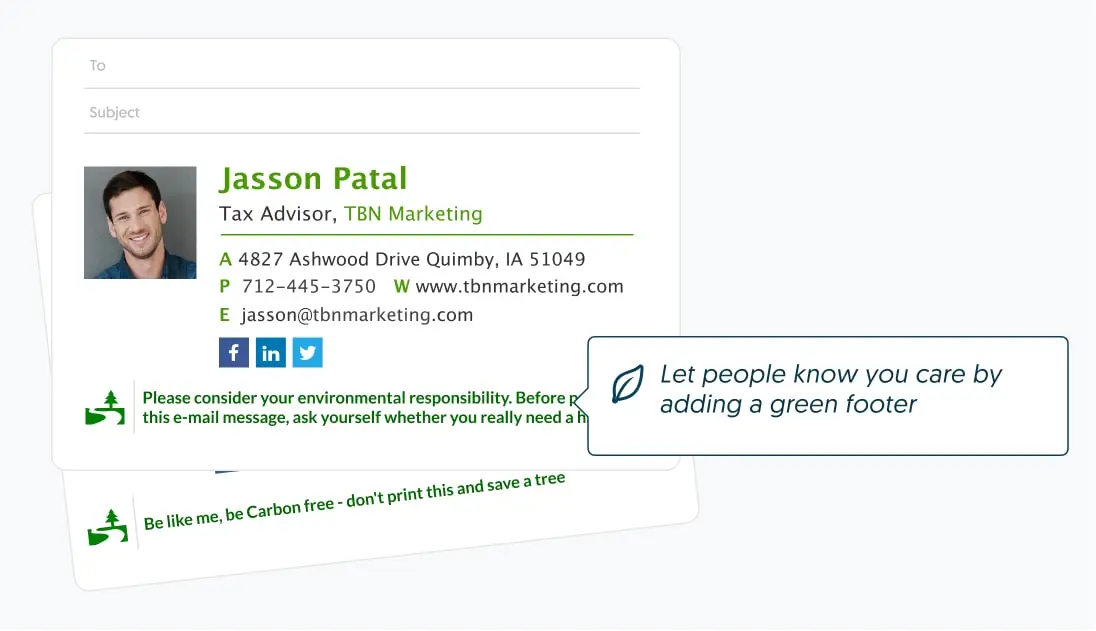
IV) Convey your values with a green email signature footer or quotes
Show anyone you write a little bit more about who you are and what you care about using a green signature footer or some nice email signature quotes.
If you care about the environment, then that’s easy, just go to our editor > add your personal and contact details > then add the green footer add-on from our add-ons section > choose a pre-made version you like, and voila!
For a bit of self-expression, you can add a signature quote from our pre-made list (funny, motivational, business, and more) or insert one of your own. Go and grab it from the add-n section.
Conclusion and key takeaways
Crafting the perfect email signature can be a game-changer. By sticking to the guidelines, you can make sure your signature stands out and does its job effectively. Following are the key takeaways from our journey:
- Trust is your strongest asset when it comes to online communication
- Design simple and clean with visual hierarchy and your brand style in mind
- Beautiful design and images are essential for a professional impression
- Include only the minimal details people must know in your signature
- Use calls-to-action, social icons, videos, and images to engage people
- Use animation to catch people’s eye (but don’t make it distracting)
- Look for add-ons for your special business needs – our editor has lots
- After generating your signature check the links and images to see if they work well
Professional email signature template examples
Over 1.3 million professionals use their WiseStamp signature to stand out professionally
Choose your best fit from 100s of email signature design templates for all major email clients, including Gmail, Outlook, Yahoo, Mac Mail, and more.