
How create a blogger email signature that generates traffic
- Learn how 1000s of bloggers use their email signature to look professional and bring in more leads
- Browse tried and tested blogger email signature templates

Short answer
What should a blogger email signature include?
- Full name with middle initial (a middle initial is associated with higher intelligence)
- Specific job title (like what type of writing you do)
- Company/workplace name
- Photo of you and/or company logo
- Website link or a link to your business offer landing page
- Social media links (icons, buttons or a banner)
- Email address (optional)
How to use your blogger/ writer email signature to generate traffic
When you’re emailing thousands of individuals throughout the week, your email signature is always attached. Just sending out an email with your signature can increase the chances of individuals, clicking on your blog link.
The following are some great tips for creating an effective lead-generating email signature for freelance writers, bloggers, copywriters, and others like them.
To
Subject

1) Use a professional blogger email signature layout that conveys skill and expertise
You’ll notice, in the illustration below, that there is a name, a title, a company name, a web address, and business contact information there.
There may also be other types of information, such as disclaimers and other contact information that includes social networking and some form of call to action.
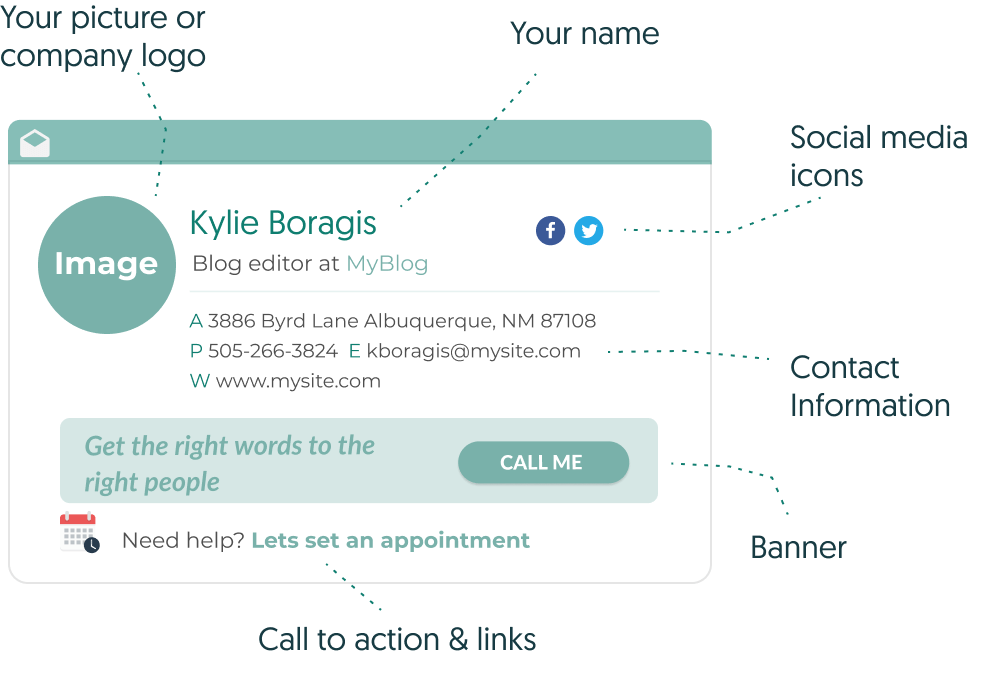
Every freelance writer needs to have a professional email signature like the one above. You can’t afford not to have a signature that reflects your skill, talent, and expertise.
2) Add some business offer in the form of a call to action
Simply by adding an email signature with a CTA that was not previously available, some people will see your offer and act on it.
Calls to action (termed CTAs in marketing jargon) are the most effective way to encourage people to act or behave in a way that contributes to your bottom line.
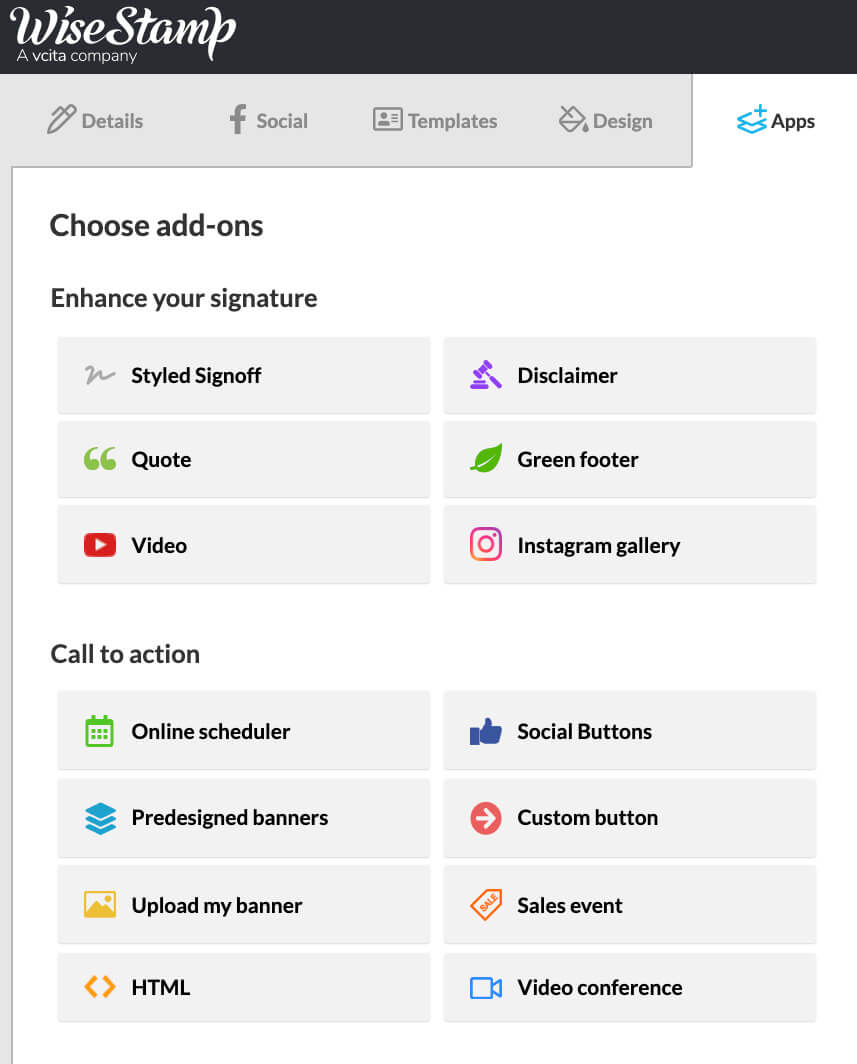
A call to action can be a button, a banner, a video, or just about anything that will entice people to click a link and go the first step in their journey of becoming a loyal customer.
The Wisestamp signature editor has all the CTAs known to man, and you can add whichever you prefer with a click.
3) Get passive interest from your usual email correspondence with content hooks
If you don’t have the time to carry out heavy promotion, then loading your email signature with content hooks is a way for you to bring in some traffic passively from your daily email correspondence.
Content hooks can help you expose your work, business offer, or CV to people in a passive way without having to jam it down their throats or, better yet, having to pay for it.
Invite people to read your latest post
Many times, having a high-quality blog post may not be enough for a new blog or a small site to get notices. Having high-quality content is important, but you’ll need some sort of push to get above the noise.
That’s where your email signature block comes in. Adding a “Read my latest post” button to your blogger signature will get people to discover your new articles faster. You can add a link in the form of a button, a link, or a banner.
This can also work for writers and authors that want to get more exposure for their new book or project.
To
Subject

Pull people in to see your social media or linkedIn page
For bloggers and freelance writers, pulling people into your social media can be a cost-effective way to build yourself as a professional in the long term.
Letting people in on your latest posts, talks, project, or getting them to look at your LinkedIn CV could be the deciding factor in whether someone decides to hire you to refer you to a friend or colleague.
A great way to introduce a social media content hook would be to add social media buttons, a banner, or a video thumbnail. For a more subtle approach, you can simply add social media icons.
To
Subject

Takeaways
In other words, don’t go another day without having a great email signature to convey your marketing message.
Whether it is to promote your blog or your website, you need to make sure that your audience is able to acquire what they need in order to reciprocate.
It is important to never underestimate the power of the email signature, which is an extremely valuable marketing tool that every industry can benefit from.
If you are a content creator, personal blogger, and or website owner, every email that you send with a signature will help you get your marketing job done.
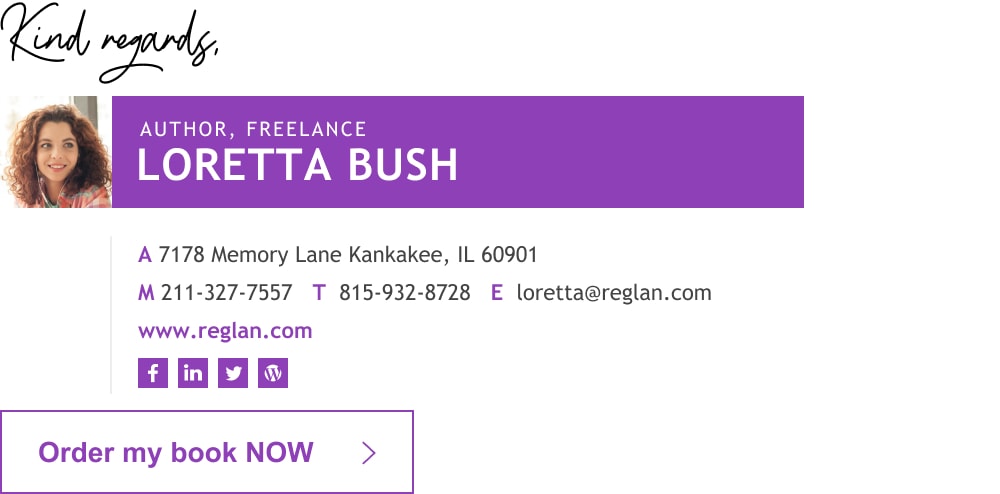
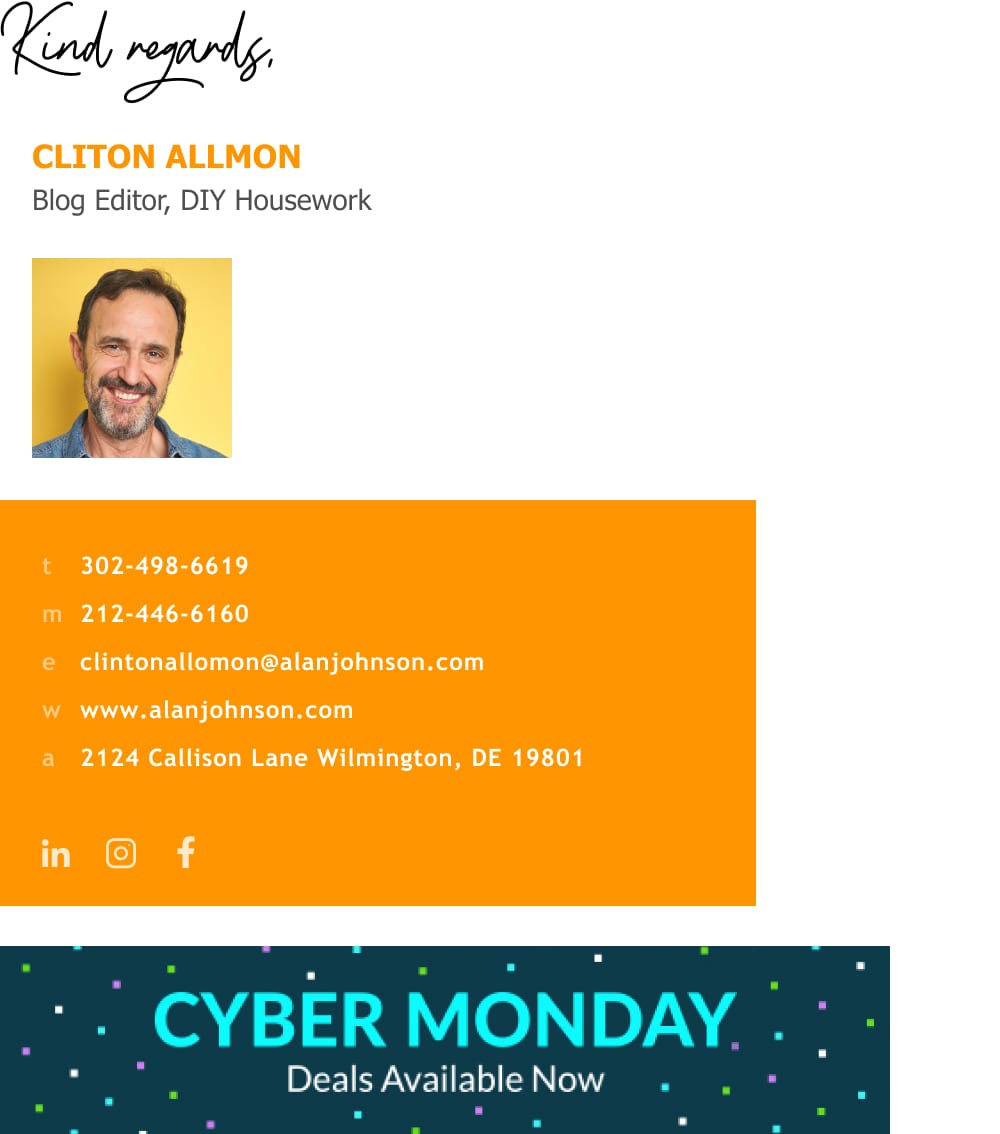
Blogger email signature templates you can use as your own
To
Subject
To
Subject

To
Subject
To
Subject

To
Subject

To
Subject
To
Subject