27 Professional Email Signature Examples for Business Email 2026
See good and proper email signature examples for corporate, small business, and creative professionals. Learn best practices and what to include in your signature.
What to Include
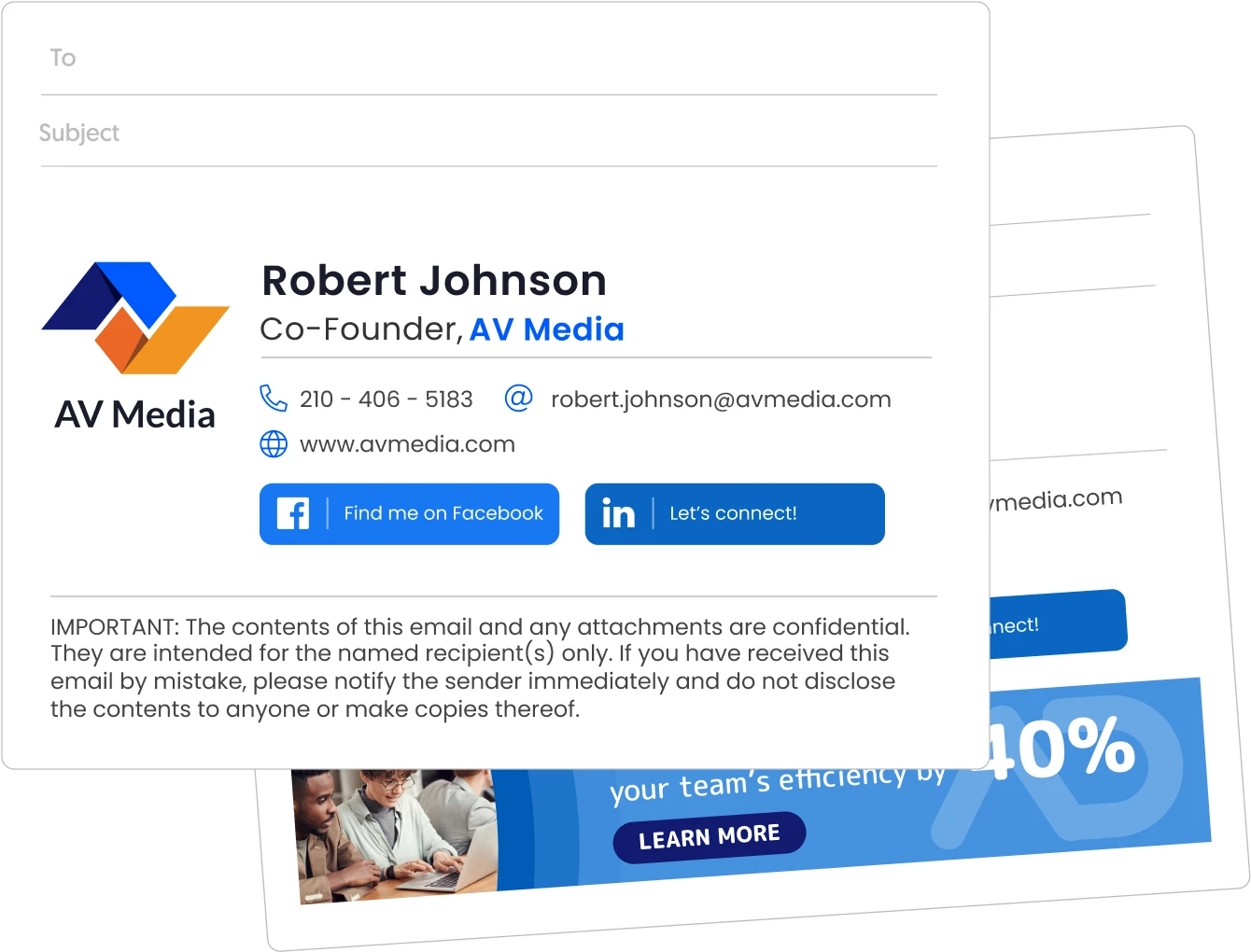
What should a professional email signature include?
- Full name and job title
- Company name and logo
- Direct phone number (optional)
- Company website URL
- LinkedIn profile link
- 1 CTA or promotional banner (optional)
- Legal disclaimer (required in financial services, healthcare, and legal industries)
Generate a custom email signature → | Browse email signature templates →
What Good Looks Like
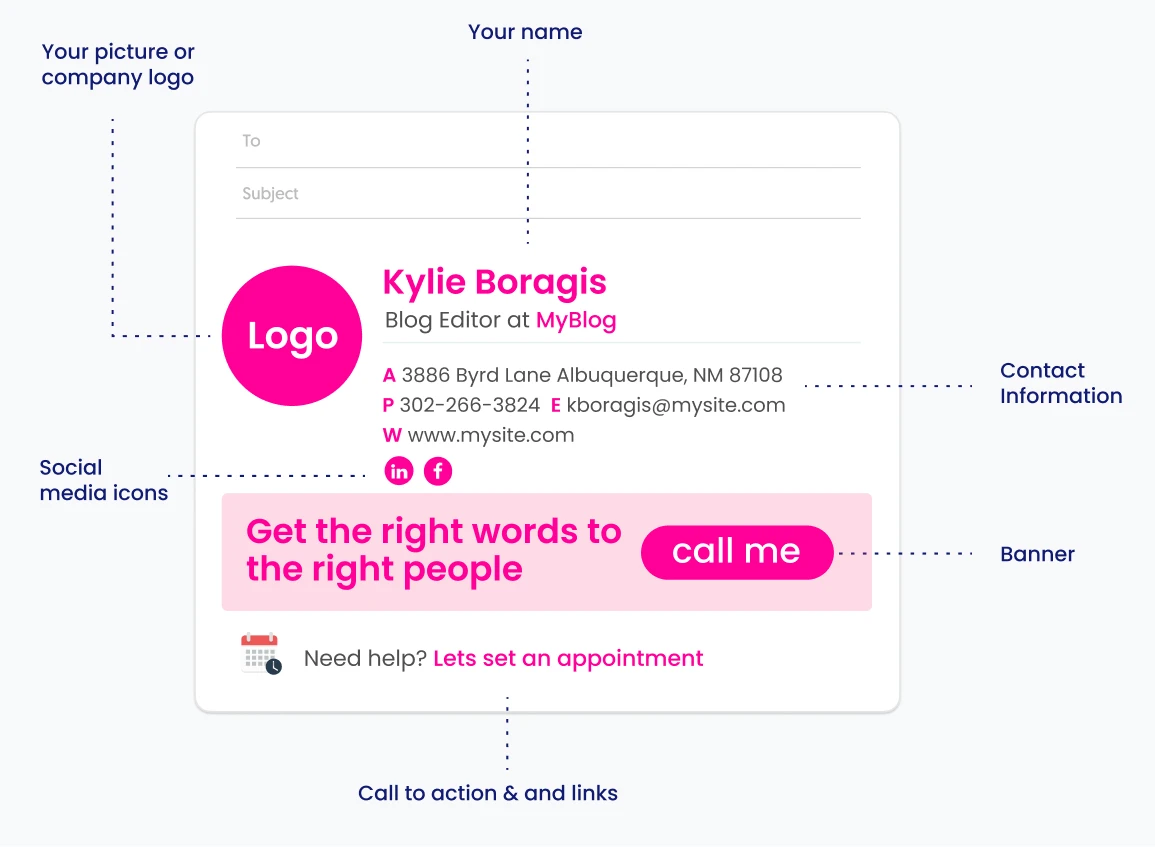
What does a professional email signature look like?
What Not To Include
What should a professional email signature never include?
- Inspirational quotes (in corporate contexts)
- Political or religious statements (unless working in politics)
- Vague job titles (unless the industry expects them)
- More than 3 social media icons (it creates clutter and dilutes click-through)
- Multiple competing CTAs (they cancel each other out)
Email Signature Examples
What are the best professional email signature examples in 2026?
70% of professionals say a well-designed email signature increases their credibility. Don’t get outcompeted by your peers.
The 27 email signature examples below cover 5 distinct professional contexts. Find the one that fits your needs.
If you find something you like, you can sign up to WiseStamp to create a similar signature in minutes.
Jump ahead to your preferred examples
- Formal corporate email signatures ⤵
- Small business email signatures ⤵
- Regulated industry email signatures ⤵
- Creative professional email signatures ⤵
- Personal email signatures ⤵
- Company-wide standardized email signatures ⤵
Professional corporate email signature examples
These 7 corporate signatures cover the core professional use cases, from brand standardization and compliance to pipeline acceleration and employer branding.
Formal corporate email signature example
At multinational scale, a consistent signature is a brand control issue, not a style preference.
This signature design locks in company logo, standard fonts, and official office address across every mailbox.
No personal customization, no variation between employees. Brand alignment is the job.
Look up the brand guidelines in internal documents or ask your superior, then apply them conservatively to your email signature.
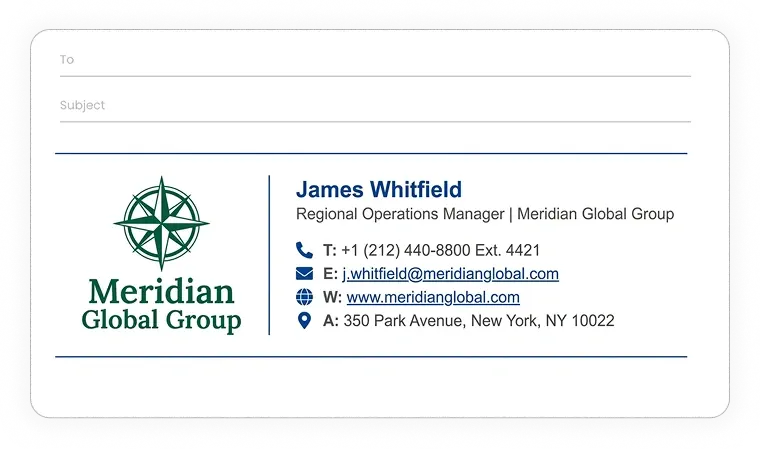
Simple-text signature
======================================================================
[ COMPANY LOGO ]  James Whitfield
                  Regional Operations Manager | Meridian Global Group
                  T: +1 (212) 440-8800 Ext. 4421
                  E: j.whitfield@meridianglobal.com
                  W: www.meridianglobal.com
                  A: 350 Park Avenue, New York, NY 10022
======================================================================
Non-reliance opinion corporate email signature example
This is an appropriate email signature for corporate lawyers, external auditors, and independent advisors need this.
Without a non-reliance clause, an advisory email can be cited as a binding firm opinion. The disclaimer draws a clean line between personal analysis and official firm position.
This is standard practice in accounting, consulting, and legal advisory work.
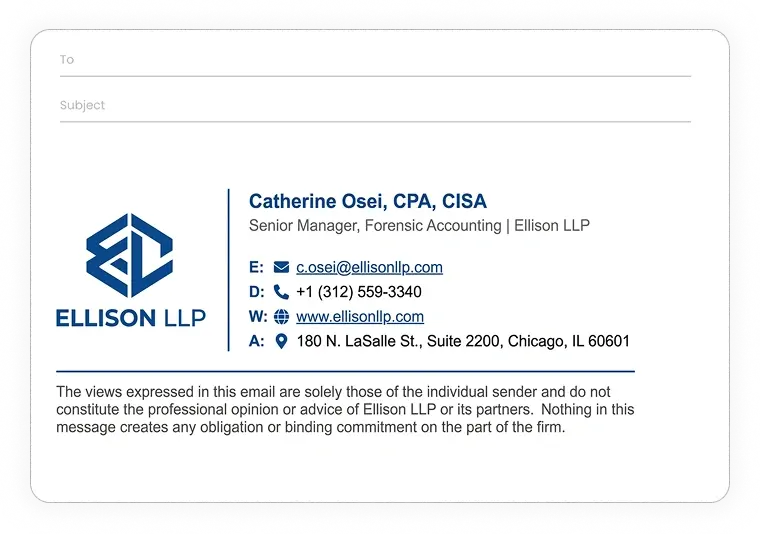
Simple-text signature
======================================================================
[ FIRM LOGO ]  Catherine Osei, CPA, CISA
               Senior Manager, Forensic Accounting | Ellison LLP
               D: +1 (312) 559-3340
               E: c.osei@ellisonllp.com
               W: www.ellisonllp.com
               A: 180 N. LaSalle St., Suite 2200, Chicago, IL 60601
======================================================================
The views expressed in this email are solely those of the individual
sender and do not constitute the professional opinion or advice of
Ellison LLP or its partners. Nothing in this message creates any
obligation or binding commitment on the part of the firm.
======================================================================
Enterprise corporate sales email signature example
This one is for enterprise AEs managing multi-stakeholder deals at Fortune 500 accounts.
A calendar link cuts the scheduling back-and-forth that routinely adds days to long sales cycles.
Territory labeling tells prospects they’ve reached the right rep before they even read the email body.
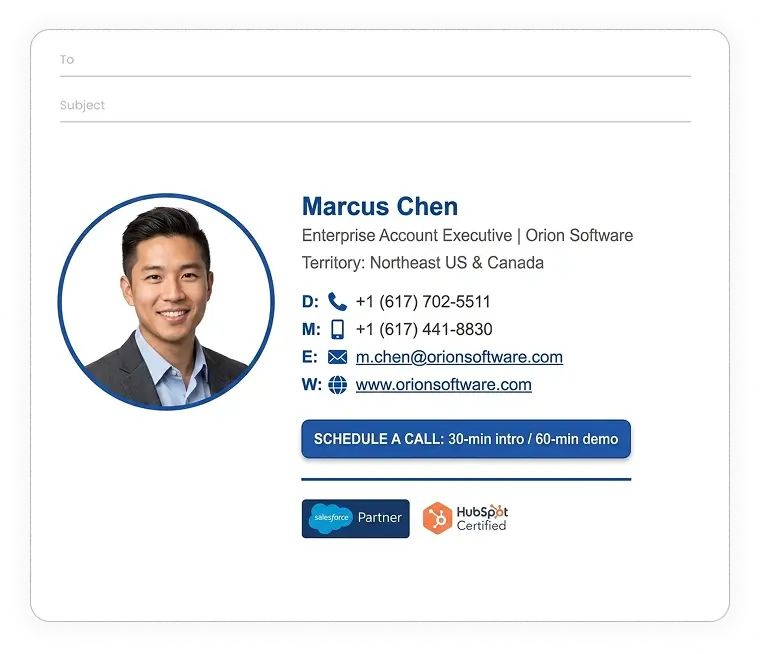
Simple-text signature
======================================================================
[ HEADSHOT ]  Marcus Chen
              Enterprise Account Executive | Orion Software
              Territory: Northeast US & Canada
              D: +1 (617) 702-5511
              M: +1 (617) 441-8830
              E: m.chen@orionsoftware.com
              W: www.orionsoftware.com
======================================================================
[ LINK: Schedule a call → ]
[ Badge: Salesforce Partner ] · [ Badge: HubSpot Certified ]
Promotional company email signature example
This example is for corporate marketing teams running product launches, seasonal campaigns, or content pushes.
With this, every outbound email your team sends is a free campaign impression.
A high-contrast banner with a UTM-tracked CTA turns routine correspondence into measurable pipeline activity without any additional ad spend.
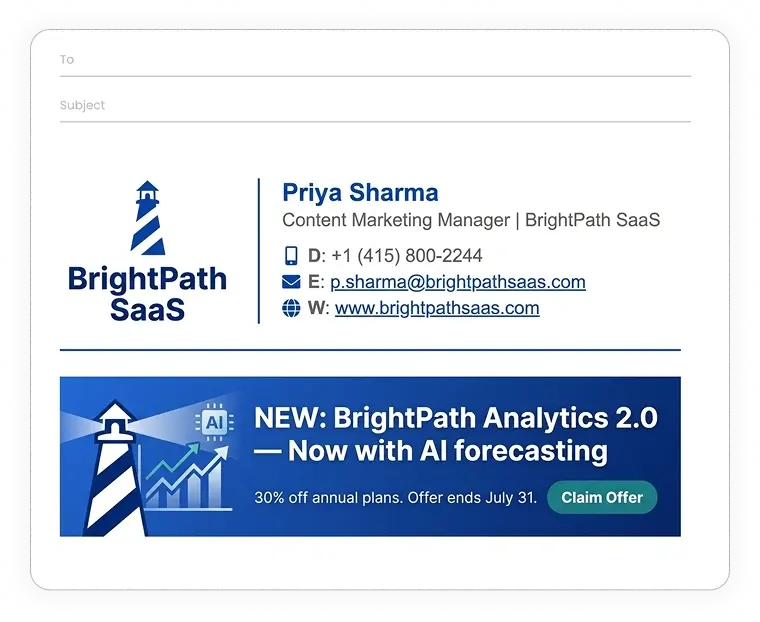
Simple-text signature
======================================================================
[ COMPANY LOGO ]  Priya Sharma
                  Content Marketing Manager | BrightPath SaaS
                  D: +1 (415) 800-2244
                  E: p.sharma@brightpathsaas.com
                  W: www.brightpathsaas.com
======================================================================
----------------------------------------------------------------------
[ BANNER ]
NEW: BrightPath Analytics 2.0 - Now with AI forecasting
30% off annual plans. Offer ends July 31.
[ BUTTON: Claim Offer → ]
----------------------------------------------------------------------
Corporate event and exhibition email signature example
This example is for field marketing managers and product leads heading into major conventions like Dreamforce, CES, or IMTS.
Booth number, speaking slot details, and a meeting request CTA consolidate all pre-show logistics into a single glance. No follow-up email needed to share where you’ll be.
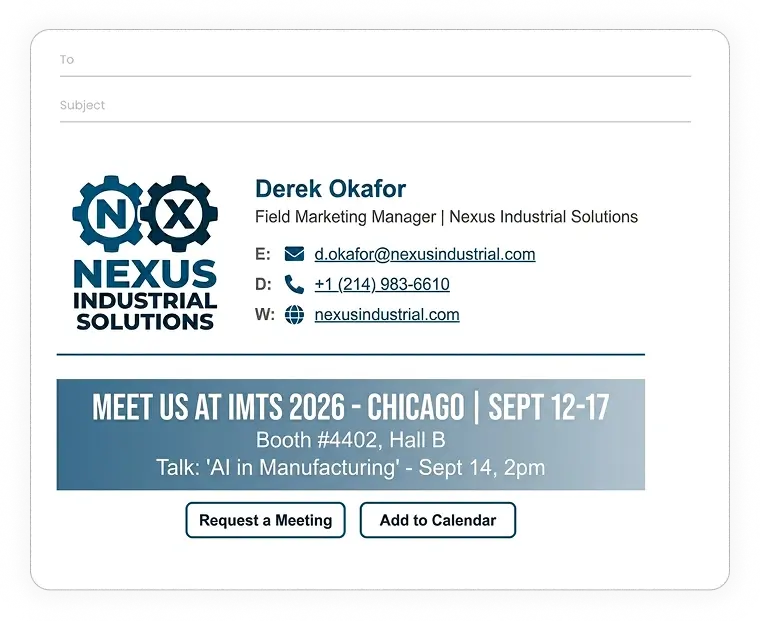
Simple-text signature
======================================================================
[ COMPANY LOGO ]  Derek Okafor
                  Field Marketing Manager | Nexus Industrial Solutions
                  D: +1 (214) 983-6610
                  E: d.okafor@nexusindustrial.com
                  W: nexusindustrial.com
======================================================================
----------------------------------------------------------------------
[ EVENT BANNER ]
MEET US AT IMTS 2026 - CHICAGO | SEPT 12-17
Booth #4402, Hall B  |  Talk: "AI in Manufacturing" - Sept 14, 2pm
[ BUTTON: Request a Meeting → ]  [ BUTTON: Add to Calendar → ]
----------------------------------------------------------------------
Business customer support email signature example
This is for enterprise helpdesk teams and client success managers handling high ticket volumes across time zones.
Visible hours and a satisfaction rating link set expectations before a customer gets frustrated.
They know when you’re available and how to flag a poor experience without hunting for a feedback form.
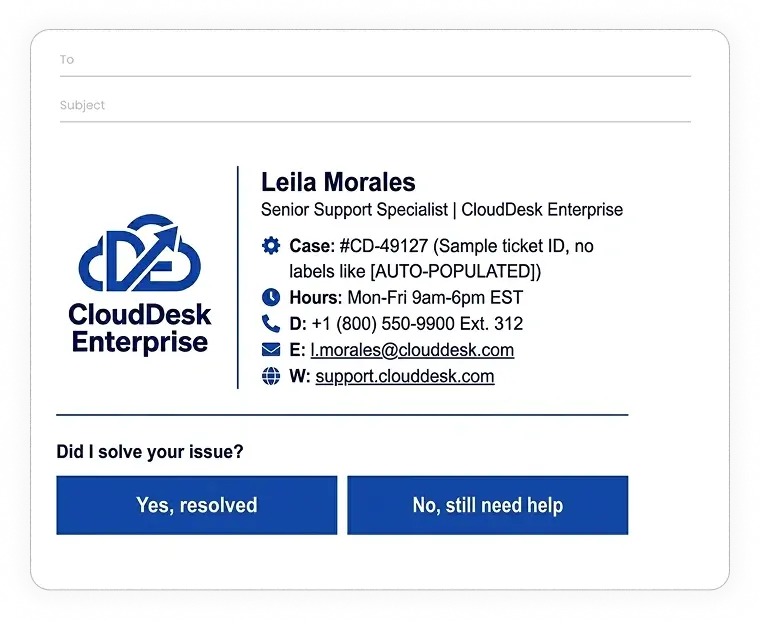
Simple-text signature
======================================================================
[ COMPANY LOGO ]  Leila Morales
                  Senior Support Specialist | CloudDesk Enterprise
                  Hours: Mon-Fri 9am-6pm EST
                  D: +1 (800) 550-9900 Ext. 312
                  E: l.morales@clouddesk.com
                  W: support.clouddesk.com
======================================================================
----------------------------------------------------------------------
Did I solve your issue?
[ BUTTON: Yes, resolved ]  [ BUTTON: No, still need help ]
[ LINK: Rate this interaction → ]
----------------------------------------------------------------------
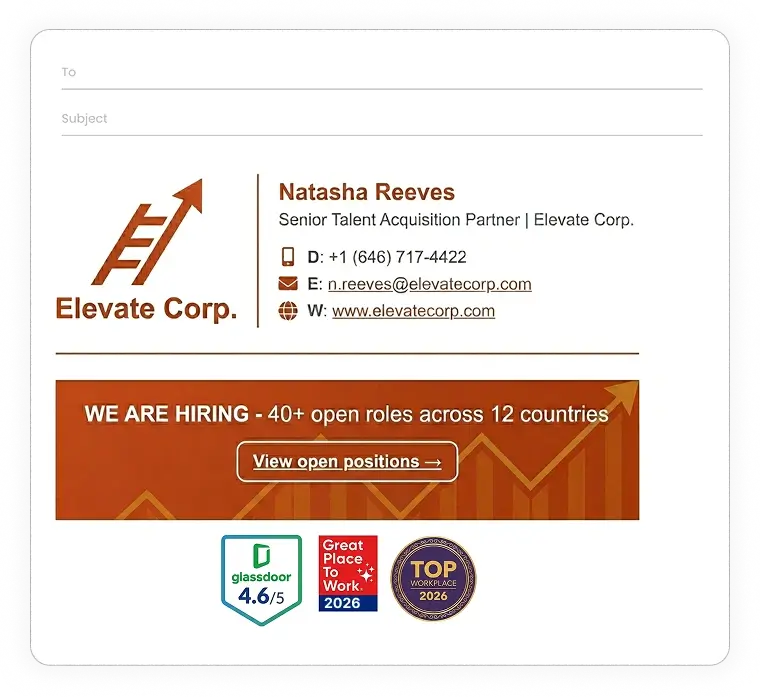
Corporate talent acquisition and recruitment email signature example
This example is best for HR and recruiting teams reaching out to candidates for senior or competitive roles.
The Glassdoor badge and direct careers link convert passive candidates who weren’t actively looking.
With this, every recruiter email becomes an employer brand touchpoint at zero incremental cost.
Simple-text signature
======================================================================
[ COMPANY LOGO ]  Natasha Reeves
                  Senior Talent Acquisition Partner | Elevate Corp.
                  D: +1 (646) 717-4422
                  E: n.reeves@elevatecorp.com
                  W: www.elevatecorp.com
======================================================================
----------------------------------------------------------------------
[ CAREERS BANNER ]
We are hiring - 40+ open roles across 12 countries
[ LINK: View open positions → ]
[ Badge: Glassdoor 4.6/5 ] · [ Badge: Great Place to Work 2026 ]
----------------------------------------------------------------------
Small business email signature examples
Small business signatures build local credibility and drive specific actions like bookings, foot traffic, and referrals – without a large corporate brand behind them.
Branded business email signature example
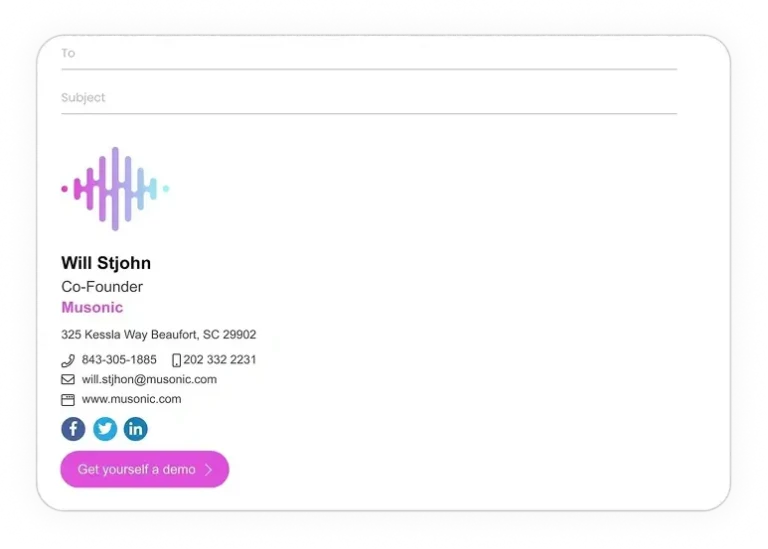
This is a proper email signature for small and growing business owners building a professional identity before a marketing budget is in place.
The signature has a company logo, stacked contact details, and a demo CTA that do the brand-building work in every email.
The signature carries the brand so the email body doesn’t have to.
Simple-text signature
======================================================================
[ COMPANY LOGO ]
Will Stjohn
Co-Founder
Musonic

📍 325 Kessla Way Beaufort, SC 29902
☎️ 843-305-1885   📱 202 332 2231
✉️ will.stjhon@musonic.com
🌐 www.musonic.com

[ Icon: Facebook ] · [ Icon: Twitter ] · [ Icon: LinkedIn ]
[ LINK: Get yourself a demo → ]
======================================================================
Small business owner email signature example
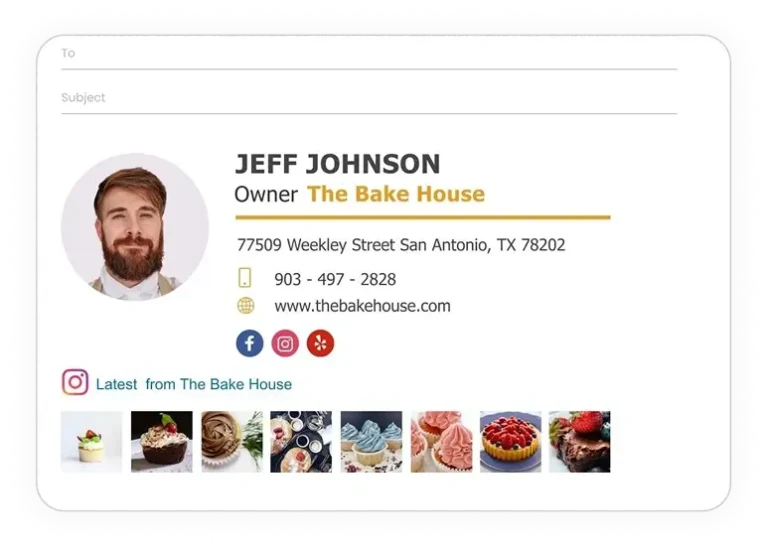
This is a good email signature for local shop owners, bakery founders, and neighborhood service providers where a real face and a real address matter more than a polished brand.
The embedded Instagram feed refreshes automatically with new posts, turning the signature into a passive social proof tool that shows community life without any extra effort.
Simple-text signature
======================================================================
[ HEADSHOT ]  JEFF JOHNSON
              Owner | The Bake House
              [ DIVIDER ]
              📍 77509 Weekley Street San Antonio, TX 78202
              📱 903 - 497 - 2828
              🌐 www.thebakehouse.com
======================================================================
[ Icon: Facebook ] · [ Icon: Instagram ] · [ Icon: Yelp ]

----------------------------------------------------------------------
[ Icon: Instagram ]  Latest from The Bake House
[ INSTAGRAM PHOTO ] [ INSTAGRAM PHOTO ] [ INSTAGRAM PHOTO ] [ INSTAGRAM PHOTO ] [ INSTAGRAM PHOTO ] [ INSTAGRAM PHOTO ] [ INSTAGRAM PHOTO ]
----------------------------------------------------------------------
Local business email signature example with Google Maps
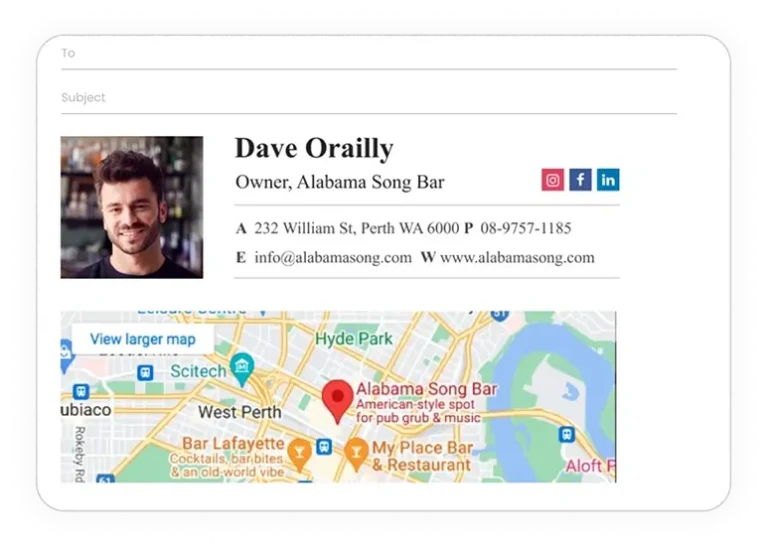
This one is for brick-and-mortar businesses (bars, restaurants, clinics, auto repair shops) that need email contacts to actually walk through the door.
A clickable Google Maps embed and visible hours reduce the friction of a first visit to a single tap. The signature does more navigation work than most website contact pages.
Simple-text signature
======================================================================
[ HEADSHOT ]  Dave Orailly
              Owner, Alabama Song Bar  [ Icon: Instagram ] [ Icon: Facebook ] [ Icon: LinkedIn ]
              [ DIVIDER ]
              A  232 William St, Perth WA 6000   P  08-9757-1185
              E  info@alabamasong.com   W  www.alabamasong.com
======================================================================
----------------------------------------------------------------------
[ GOOGLE MAPS EMBED ]
[ LINK: View larger map → ]
----------------------------------------------------------------------
Digital Business Card (DBC) professional email signature example
email Signature example.webp)
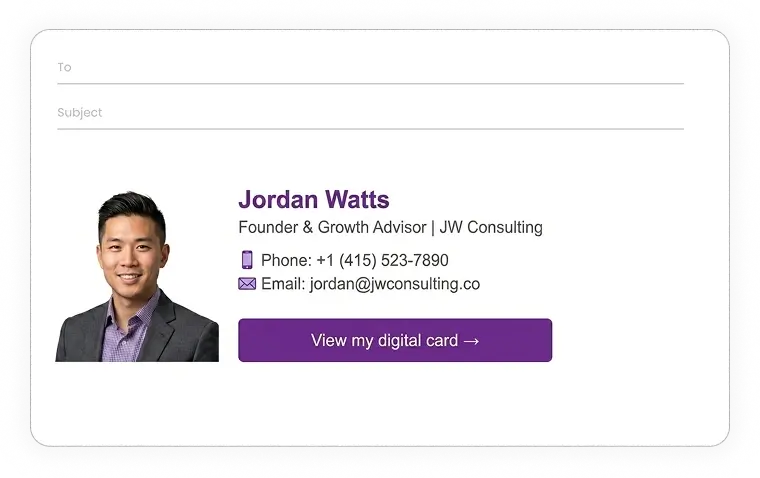
This is a great email signature for tech founders, mobile sales reps, and frequent networkers who’ve stopped carrying physical cards.
The digital card link centralizes every contact detail in one tap-to-save URL.
This signature is clean, minimal, and mobile-first. The format that works best across Gmail and Apple Mail.
Simple-text signature
======================================================================
[ HEADSHOT ]  Jordan Watts
              Founder & Growth Advisor | JW Consulting
              📱 +1 (415) 523-7890
              ✉️ jordan@jwconsulting.co
======================================================================
[ LINK: View my digital card → ]
Real estate company email signature example
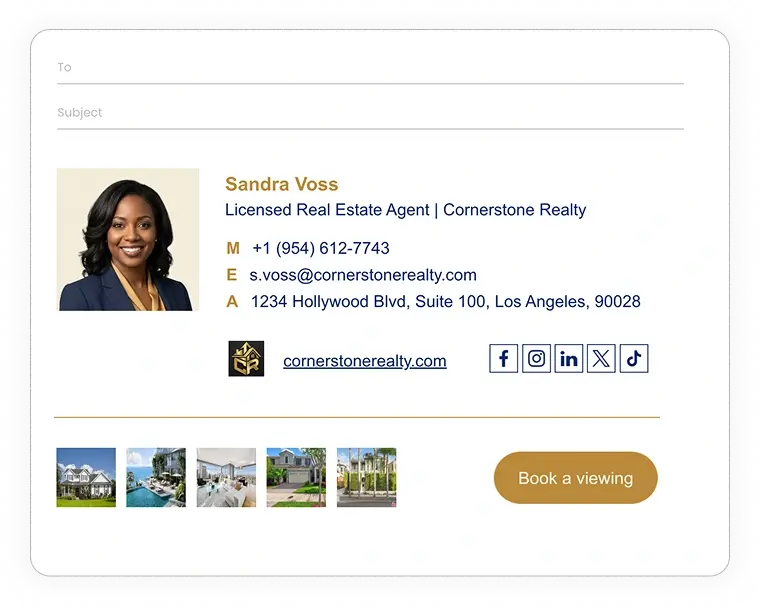
This signature is made for licensed agents and brokerages actively marketing residential or commercial listings.
A DRE license number establishes credentials before the prospect asks for them.
The scrollable property photo gallery shows live inventory with clickable links, and a booking CTA button converts browsing interest into a scheduled viewing.
Simple-text signature
======================================================================
[ AGENT HEADSHOT ]  Sandra Voss
                    Licensed Real Estate Agent
                    Cornerstone Realty

                    M  +1 (954) 612-7743
                    E  s.voss@cornerstonerealty.com
                    A  Company address
                    DRE Lic. #01923847

[ COMPANY LOGO ]  cornerstonerealty.com  [ Icon: Facebook ] [ Icon: Instagram ] [ Icon: LinkedIn ] [ Icon: X ] [ Icon: TikTok ]
======================================================================
[ DIVIDER ]
----------------------------------------------------------------------
[ PROPERTY PHOTO ] [ PROPERTY PHOTO ] [ PROPERTY PHOTO ] [ PROPERTY PHOTO ] [ PROPERTY PHOTO ]   [ BUTTON: Book a viewing → ]
----------------------------------------------------------------------
Regulated industry email signature examples
These professional signatures combine contact details with legally mandated notices for HIPAA, SEC regulations, attorney-client privilege, and GDPR data protection.
Note: All the disclaimer texts in the example on this page are just a suggestion. They are not prescribed by a legal professional.
Healthcare HIPAA-compliant email signature example
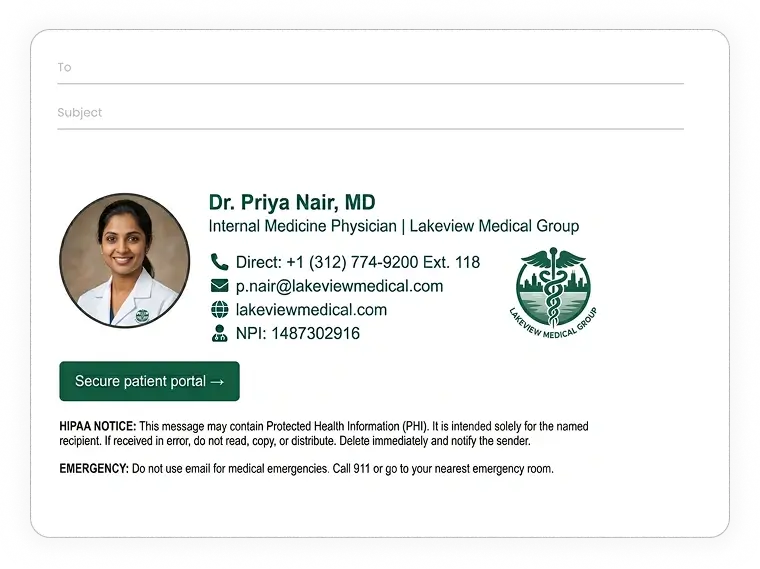
This signature works best for hospital networks, private practices, and digital health providers handling patient communications.
A PHI notice and deletion instruction satisfy HIPAA requirements in the signature itself.
The secure patient portal link keeps clinical conversations off standard email threads, where they don’t belong.
Simple-text signature
======================================================================
[ HEADSHOT    ]
[ CLINIC LOGO ]  Dr. Priya Nair, MD
                 Internal Medicine Physician | Lakeview Medical Group
                 D: +1 (312) 774-9200 Ext. 118
                 E: p.nair@lakeviewmedical.com
                 W: lakeviewmedical.com
                 NPI: 1487302916
======================================================================
[ LINK: Secure patient portal → ]

HIPAA NOTICE: This message may contain Protected Health Information
(PHI). It is intended solely for the named recipient. If received in
error, do not read, copy, or distribute. Delete immediately and
notify the sender.

EMERGENCY: Do not use email for medical emergencies.
Call 911 or go to your nearest emergency room.
======================================================================
Financial services disclaimer email signature example
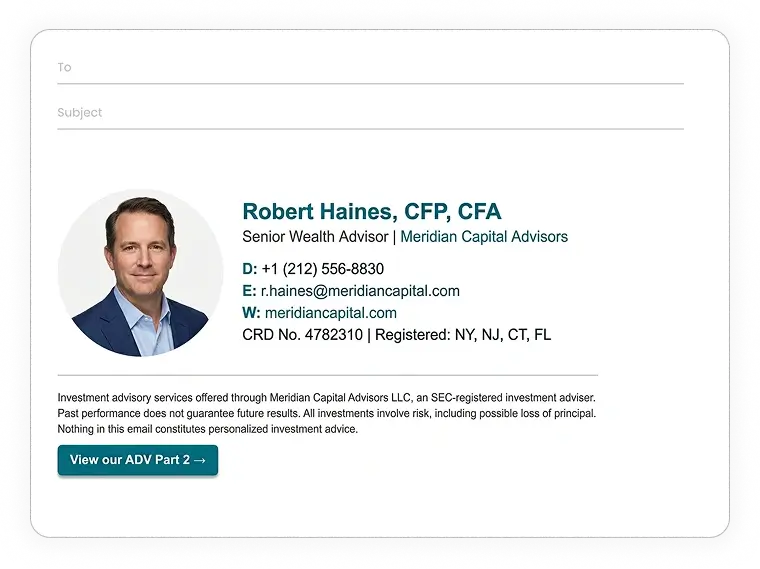
This signature block example is for Wealth management firms, SEC-registered RIAs, and brokerages required to include FINRA risk disclosures in client-facing communications.
The CFP and CFA credentials appear before the firm name, which is where compliance reviewers and clients both look first.
The past-performance disclaimer handles a regulatory requirement without needing a separate disclosure email.
Simple-text signature
======================================================================
[ HEADSHOT ]  Robert Haines, CFP, CFA
              Senior Wealth Advisor | Meridian Capital Advisors
              D: +1 (212) 556-8830
              E: r.haines@meridiancapital.com
              W: meridiancapital.com
              CRD No. 4782310 | Registered: NY, NJ, CT, FL
======================================================================
Investment advisory services offered through Meridian Capital Advisors
LLC, an SEC-registered investment adviser.
Past performance does not guarantee future results. All investments
involve risk, including possible loss of principal. Nothing in this
email constitutes personalized investment advice.
[ LINK: View our ADV Part 2 → ]
=======================================================================/
Nondisclosure and confidentiality email signature example
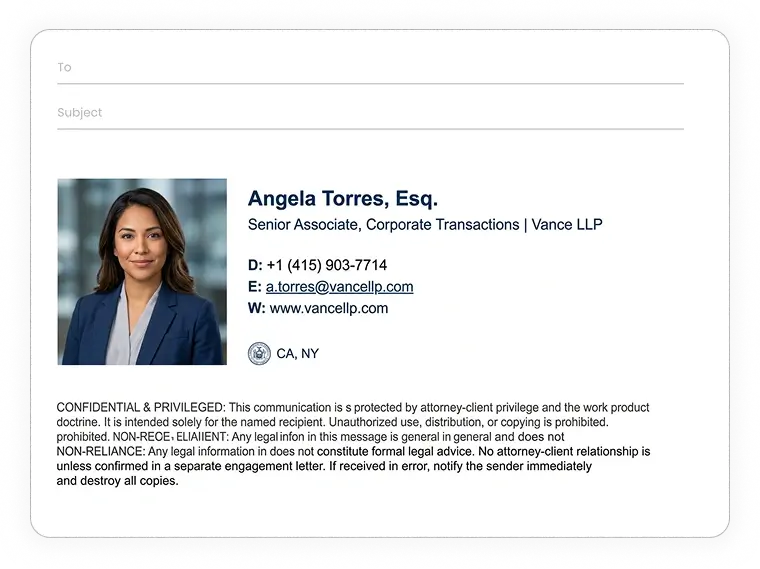
This is for corporate law firms, M&A teams, defense contractors, and aerospace companies handling privileged communications.
Bar admissions establish standing, the attorney-client privilege notice limits distribution risk, and the non-reliance clause prevents an advisory email from being cited as a binding legal commitment later.
Simple-text signature
======================================================================
[ HEADSHOT ]  Angela Torres, Esq.
              Senior Associate, Corporate Transactions | Vance LLP
              D: +1 (415) 903-7714
              E: a.torres@vancellp.com
              W: www.vancellp.com
              Bar Admissions: CA, NY
======================================================================
CONFIDENTIAL & PRIVILEGED: This communication is protected by
attorney-client privilege and the work product doctrine. It is
intended solely for the named recipient. Unauthorized use,
distribution, or copying is prohibited.

NON-RELIANCE: Any legal information in this message is general in
nature and does not constitute formal legal advice. No attorney-client
relationship is formed unless confirmed in a separate engagement letter.

If received in error, notify the sender immediately and destroy all copies.
======================================================================
Creative professional email signature examples
These signatures professionally showcase personal brand and creative output through motion, video, live portfolios, and minimalist design for client-facing creative professionals.
Minimalist monogram email signature example
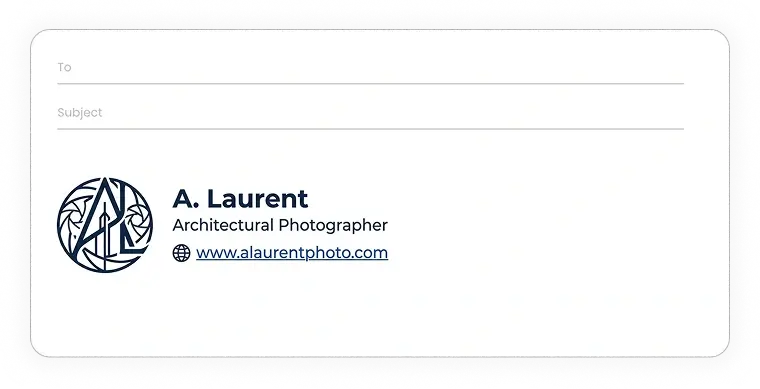
This one is for fashion photographers, architectural designers, and luxury brand consultants where restraint is the aesthetic.
A typographic monogram replaces the headshot, and a single portfolio link is the only CTA.
The deliberate absence of contact clutter signals exactly the taste level clients in this space are evaluating for.
Simple-text signature
======================================================================
[ MONOGRAM ]  A. Laurent
              Architectural Photographer
              🌐 www.alaurentphoto.com
======================================================================
Professional live portfolio email signature example
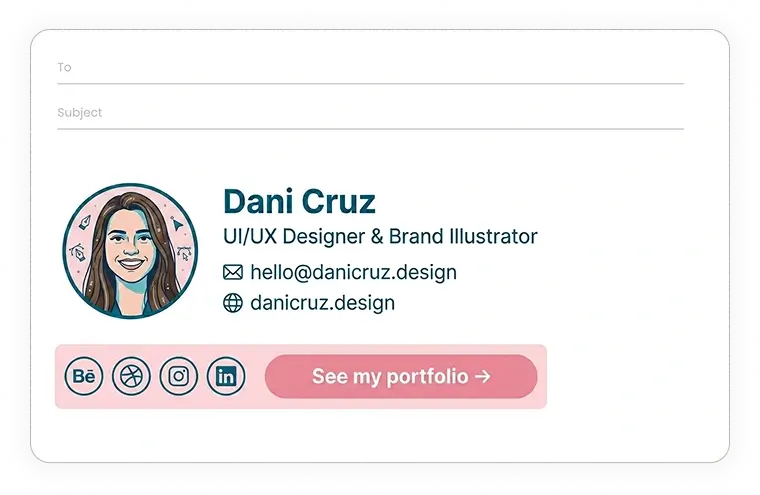
This professional email footer is best for graphic designers, UI/UX professionals, and digital illustrators prospecting clients or art directors who judge the work before the conversation.
The links to Behance, Dribbble, and Instagram let recipients jump straight to the portfolio.
The direct CTA converts every signature impression into a potential lead without a pitch email.
Simple-text signature
======================================================================
[ AVATAR ]  Dani Cruz
            UI/UX Designer & Brand Illustrator

            ✉️  hello@danicruz.design

            🌐  danicruz.design
======================================================================
----------------------------------------------------------------------
[ Icon: Behance ] [ Icon: Dribbble ] [ Icon: Instagram ] [ Icon: LinkedIn ]    [ BUTTON: See my portfolio → ]
----------------------------------------------------------------------
Animated GIF email signature example
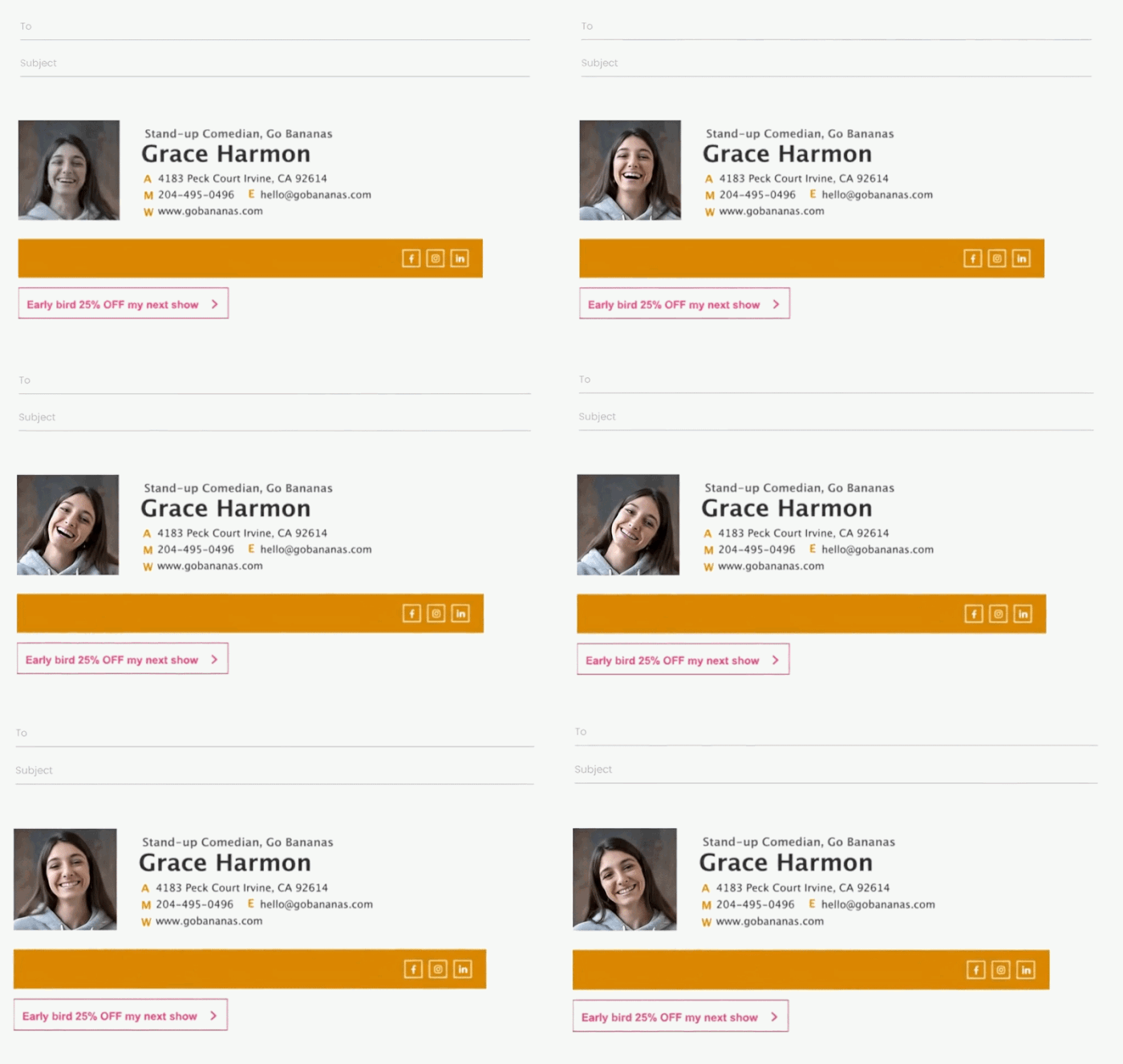
This signature works best for motion graphics artists, video editors, comedians, and 3D animators whose clients are primarily on Gmail or Apple Mail.
The looping animated headshot creates visual personality before the email is even read.
One caveat: Outlook displays animated GIFs as static images, so the platform context matters before committing to this format. Worst case, on Outlook the reader will see a smiling headshot.
Simple-text signature
======================================================================
[ ANIMATED GIF ]  Stand-up Comedian, Go Bananas
                  Grace Harmon

                  A  4183 Peck Court Irvine, CA 92614
                  M  204-495-0496   E  hello@gobananas.com
                  W  www.gobananas.com
======================================================================
----------------------------------------------------------------------
[ BANNER ]                    [ Icon: Facebook ] [ Icon: Instagram ] [ Icon: LinkedIn ]
----------------------------------------------------------------------
[ LINK: Early bird 25% OFF my next show → ]
Professional video email signature example
This is a good choice for Workshop coordinators, event producers, educators, and creative freelancers whose work is better shown than described.
The YouTube thumbnail with a (fake) play button creates human connection before the first call.
The handwritten sign-off adds warmth that no font choice can replicate.
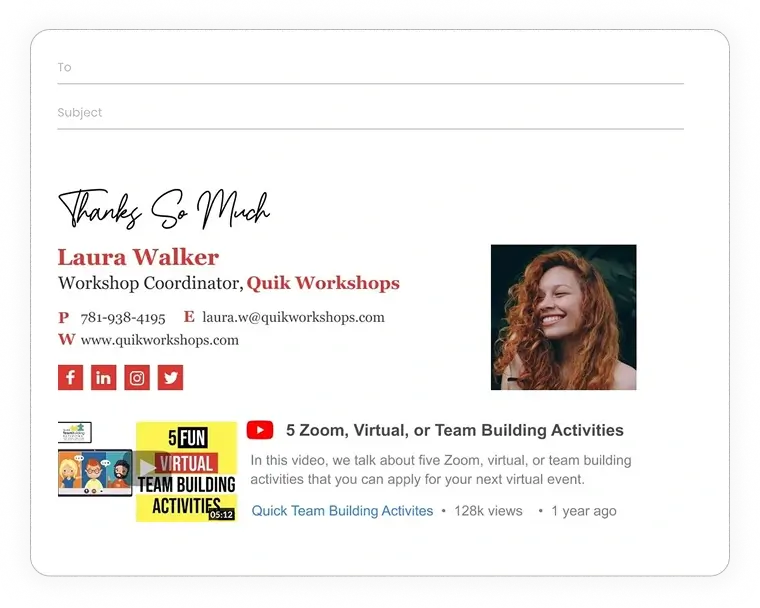
Simple-text signature
[ HANDWRITTEN SIGN-OFF: Thanks So Much ]

======================================================================
Laura Walker                                            [ HEADSHOT ]
Workshop Coordinator, Quik Workshops

P  781-938-4195   E  laura.w@quikworkshops.com
W  www.quikworkshops.com

[ Icon: Facebook ] [ Icon: LinkedIn ] [ Icon: Instagram ] [ Icon: Twitter ]
======================================================================
----------------------------------------------------------------------
[ VIDEO THUMBNAIL ]  [ Icon: YouTube ]  5 Zoom, Virtual, or Team Building Activities
                     In this video, we talk about five Zoom, virtual, or team
                     building activities that you can apply for your next virtual event.
                     Quick Team Building Activities · 128k views · 1 year ago
----------------------------------------------------------------------
Personal email signature examples
These email signatures cover personal email use cases outside the office like job searches, side-hustle networking, student correspondence, and community group communications.
Appropriate personal email signature example
A good signature example for professionals running a side project alongside a day job who want to network without mixing corporate and personal branding.
A dual-context title signals both worlds in one line. The portfolio link enables soft discovery without a formal pitch or a separate email account.

Simple-text signature
======================================================================
Alex Torres
Marketing Analyst by day | Freelance Baker by night
📱 +1 (347) 502-8810
✉️ alex.torres@gmail.com
======================================================================
[ LINK: See my work → ]
Professional resume email signature example
This one works for recent graduates and professionals in active career transition emailing recruiters, hiring managers, or professional contacts on Gmail or LinkedIn.
A targeted industry title and a direct resume download link make the intent clear from the first impression. No cover letter required to get the point across.
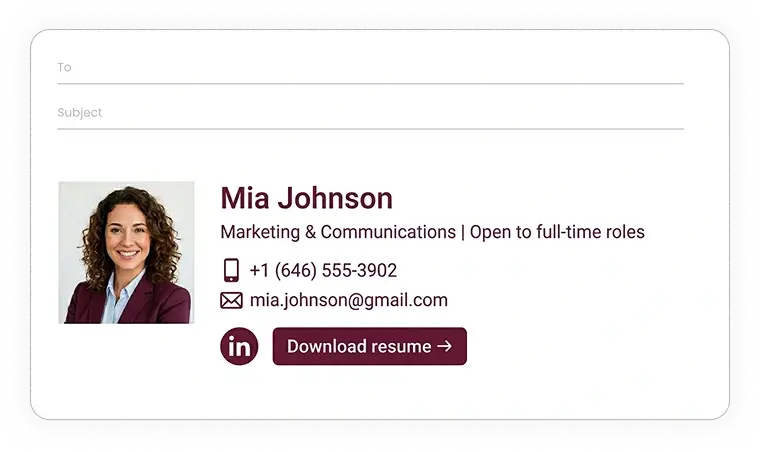
Simple-text signature
======================================================================
[ HEADSHOT ]  Mia Johnson
              Marketing & Communications | Open to full-time roles
              📱 +1 (646) 555-3902
              ✉️ mia.johnson@gmail.com
======================================================================
[ Icon: LinkedIn ]
[ LINK: Download resume → ]
Appropriate inspirational quote email signature example
This signature is proper for personal accounts used for community groups, book clubs, and creative circles where a quote fits the tone.
The divider keeps contact info and personal expression cleanly separated, so neither competes with the other. A headshot humanizes what would otherwise read as a text block.
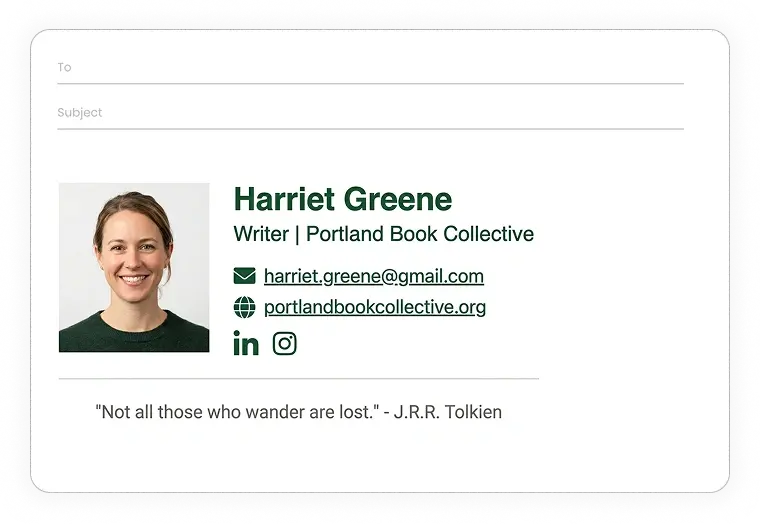
Simple-text signature
======================================================================
[ HEADSHOT ]  Harriet Greene
              Writer | Portland Book Collective
              ✉️ harriet.greene@gmail.com
              🌐 portlandbookcollective.org
              [ Icon: LinkedIn ] · [ Icon: Instagram ]
======================================================================
"Not all those who wander are lost." - J.R.R. Tolkien
Proper email signature for students
This example is a fine choice for university students communicating with professors, internship coordinators, and early-career professional contacts.
Degree program, university name, and expected graduation year give recruiters immediate context.
A LinkedIn and GitHub link signal professional intent beyond coursework, which matters when there’s no work history yet.
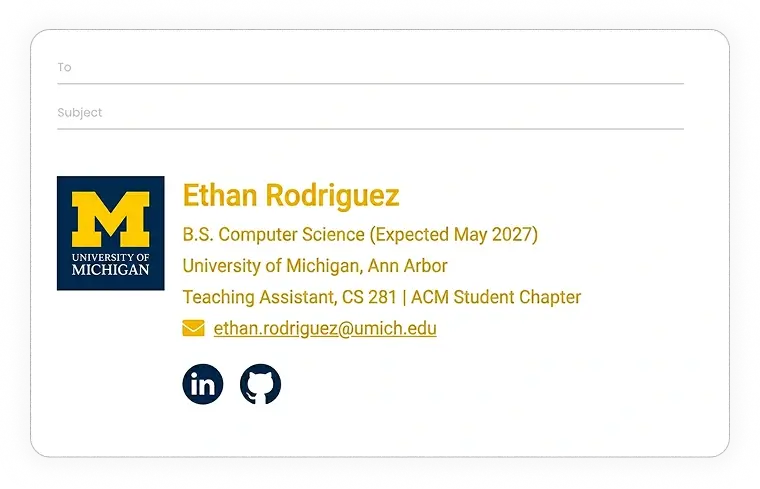
Simple-text signature
======================================================================
[ UNIVERSITY LOGO ]  Ethan Rodriguez
                     B.S. Computer Science (Expected May 2027)
                     University of Michigan, Ann Arbor
                     Teaching Assistant, CS 281 | ACM Student Chapter
                     ✉️ ethan.rodriguez@umich.edu
======================================================================
[ Icon: LinkedIn ] · [ Icon: GitHub ]
Best company-wide email signature examples
These company email signature examples are more like templates.
You can use them as the layout for a standardized email signature with dynamic variables that populate each employee signature automatically with their corresponding information.
Branded company email signature example
This is a standardized template for deploying 1 approved design across every employee mailbox. Logo, job title, department, and contact fields lock in brand consistency at scale.
Marketing owns the design. Employees fill in their details. No one goes rogue with a different font or headshot crop.
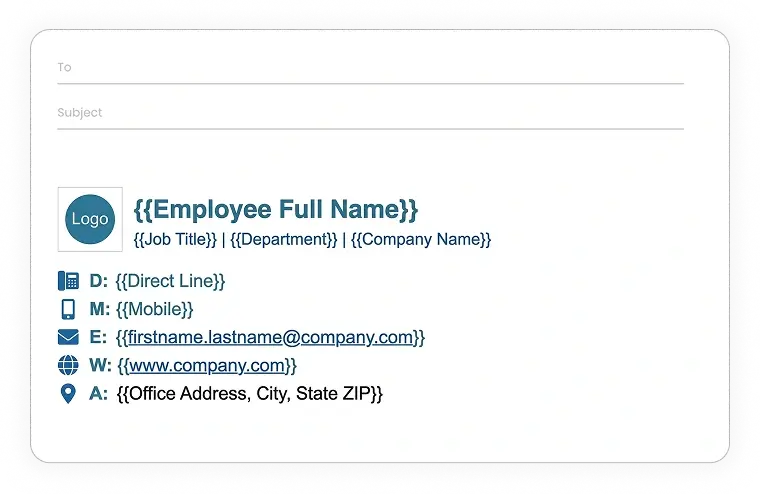
Simple-text signature
======================================================================
[ COMPANY LOGO ]  <Employee Full Name>
                  <Job Title> | <Department> | <Company Name>
                  D: <Direct Line>
                  M: <Mobile>
                  E: <firstname.lastname@company.com>
                  W: <www.company.com>
                  A: <Office Address, City, State ZIP>
======================================================================
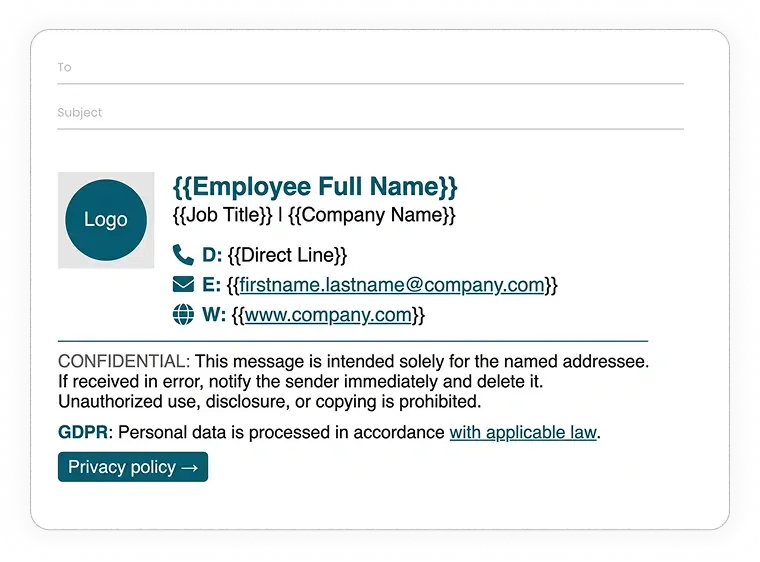
Example of company email signature with disclaimer
This is a good signature for any company that needs confidentiality notices and GDPR transparency statements appended to every outbound email.
A single managed template keeps legal language uniform, version-controlled, and visible without requiring employees to copy-paste disclaimer text manually.
Note: Replace the example disclaimer with your Legal approved version.
Simple-text signature
======================================================================
[ COMPANY LOGO ]  <Employee Full Name>
                  <Job Title> | <Company Name>
                  D: <Direct Line>
                  E: <firstname.lastname@company.com>
                  W: <www.company.com>
======================================================================
CONFIDENTIAL: This message is intended solely for the named addressee.
If received in error, notify the sender immediately and delete it.
Unauthorized use, disclosure, or copying is prohibited.

GDPR: Personal data is processed in accordance with applicable law.
[ LINK: Privacy policy → ]
======================================================================
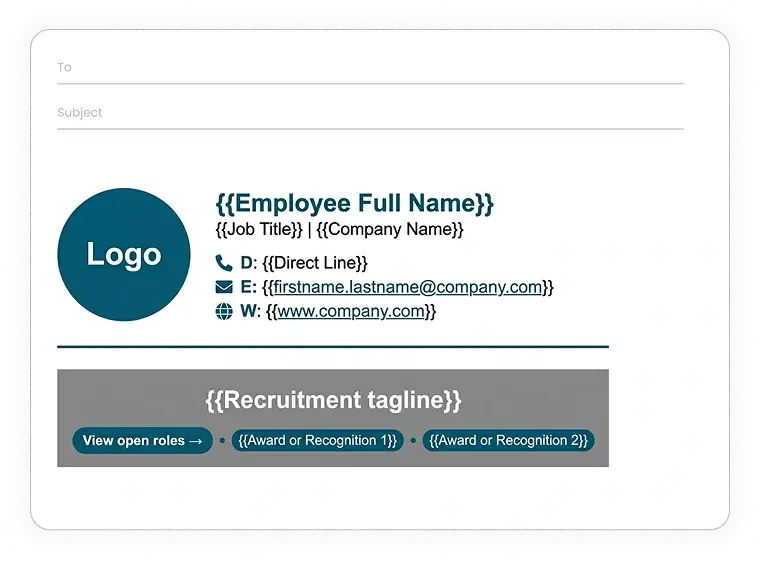
Company recruitment email signature example
This signature is best for HR and talent teams that want every employee’s email to double as a passive hiring channel.
A shared hiring banner and Glassdoor badge deploy consistently across the organization from a single template update, without chasing individual employees to add a careers link.
Simple-text signature
======================================================================
[ COMPANY LOGO ]  <Employee Full Name>
                  <Job Title> | <Company Name>
                  D: <Direct Line>
                  E: <firstname.lastname@company.com>
                  W: <www.company.com>
======================================================================
----------------------------------------------------------------------
[ HIRING BANNER ]
<Recruitment tagline>
[ LINK: View open roles → ]
[ Badge: <Award or Recognition> ] · [ Badge: <Award or Recognition> ]
----------------------------------------------------------------------
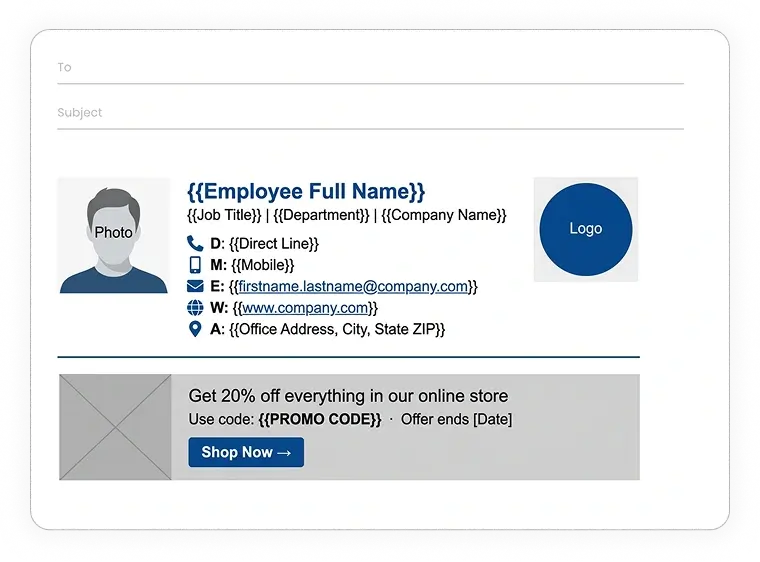
Example of company email signature used for promotions
This one is for Marketing teams that want to run signature banner campaigns without involving IT or emailing employees a new template each time.
The promoted offer, promo code, and CTA update centrally across the whole organization from a single dashboard change.
Simple-text signature
======================================================================
[ HEADSHOT ]  <Employee Full Name>                       [ COMPANY LOGO ]
              <Job Title> | <Department> | <Company Name>
              D: <Direct Line>
              M: <Mobile>
              E: <firstname.lastname@company.com>
              W: <www.company.com>
              A: <Office Address, City, State ZIP>
======================================================================
----------------------------------------------------------------------
[ PROMOTIONAL BANNER ]
Get 20% off everything in our online store
Use code: <PROMO CODE>  ·  Offer ends <Date>
[ BUTTON: Shop Now → ]
----------------------------------------------------------------------
Email Signature Creation
How to create a professional email signature?
Creating your email signature manually in Gmail, Outlook, or Apple Mail is possible but not advised.
Because getting font consistency, logo sizing, and link formatting right without a tool takes non-coders longer than the task deserves.
Your best choice for a consistently professional outcome is to use a signature creator tool, and WiseStamp is your best option. You can create a custom battle-tested signature in just a couple of minutes.
You can even copy and paste your preferred example into our studio, and our AI will generate an HTML template for you to customize
If you want something solid but basic for free
- Use WiseStamp’s free email signature generator
- Generate with AI – grab the simple-text signature template under the example you prefer on my list, add your details, and drop it in your preferred AI tool (Important: Generate an HTML signature. Do not generate an image – these get distorted or don’t show in some email clients.)
If you are adamant about building a signature yourself, you have these quick guides:
- How to add a signature in Gmail
- How to add a signature in Outlook
- How to add a signature in Apple Mail
Company-Wide Signature Creation
How to create a professional email signature for my entire company?
Rolling out a consistent signature company-wide manually means sending a template and hoping everyone applies it correctly and in reasonable time.
What looks right in Gmail often renders broken in Outlook. And there are tens of devices to QA the signature for.
Luckily, you don’t have to suffer this headache. You can use an email signature management software instead.
WiseStamp’s email signature manager deploys a standardized approved design to every mailbox in your company from a single dashboard.
You can also have your IT do it manually by following these guides: